
How to cancel a subscription on 코인리치
How to cancel a subscription on your iPhone
Discover how to cancel a subscription through Apple or one purchased via an app on the App Store.
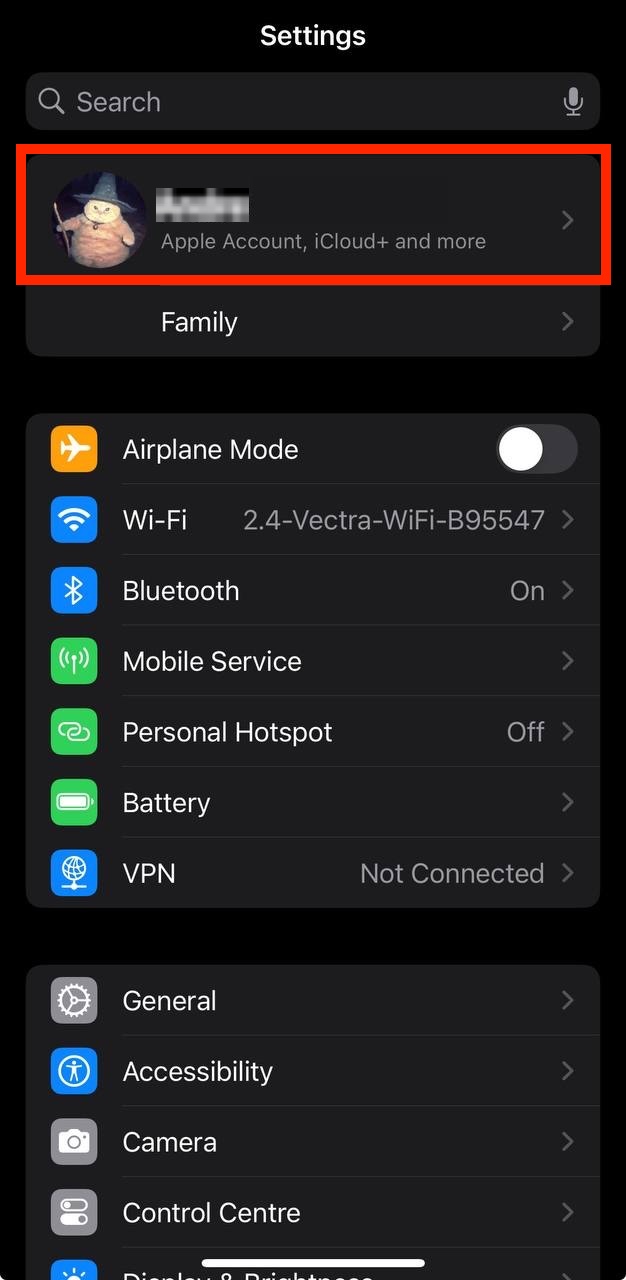
- Open the Settings app.
- Tap your name - "Apple Account, iCloud and more"
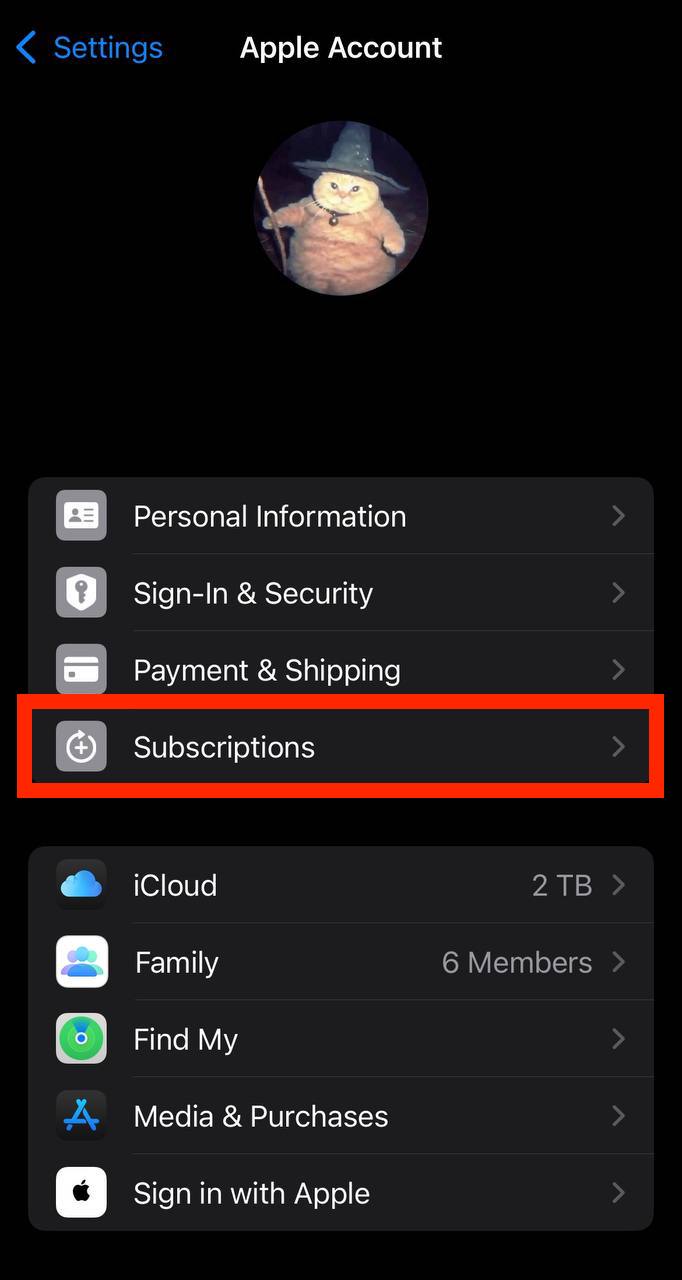
In the first section, tap Subscriptions.
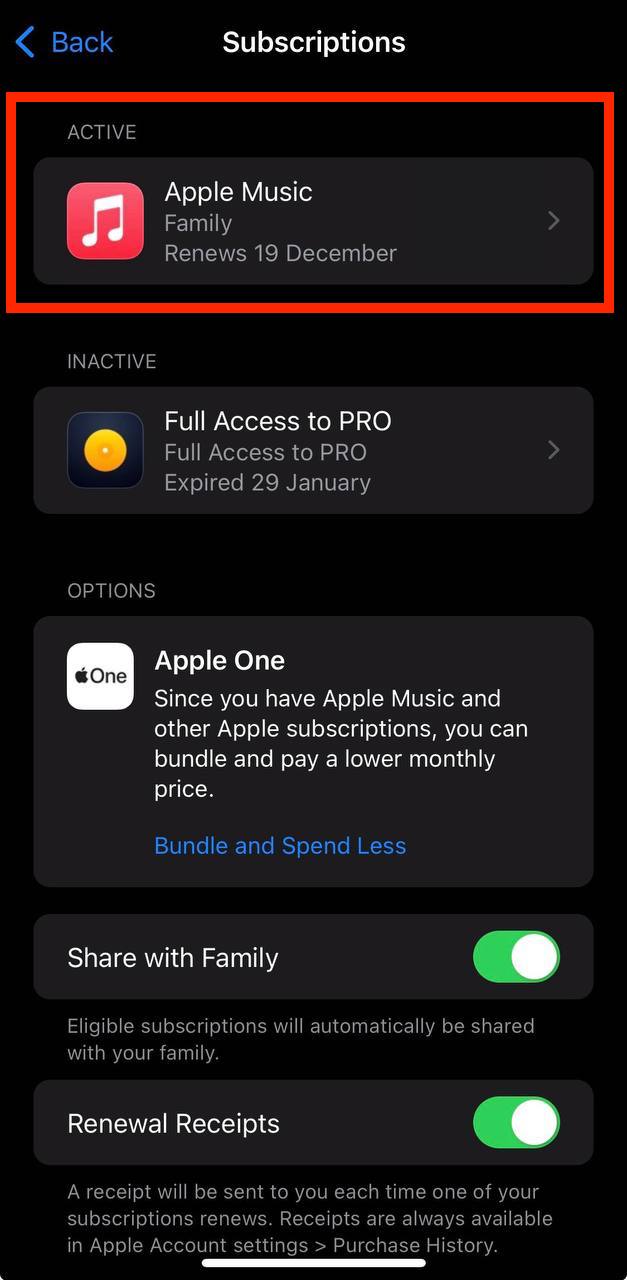
Show screenshot.Select the 코인리치 subscription you want to cancel.
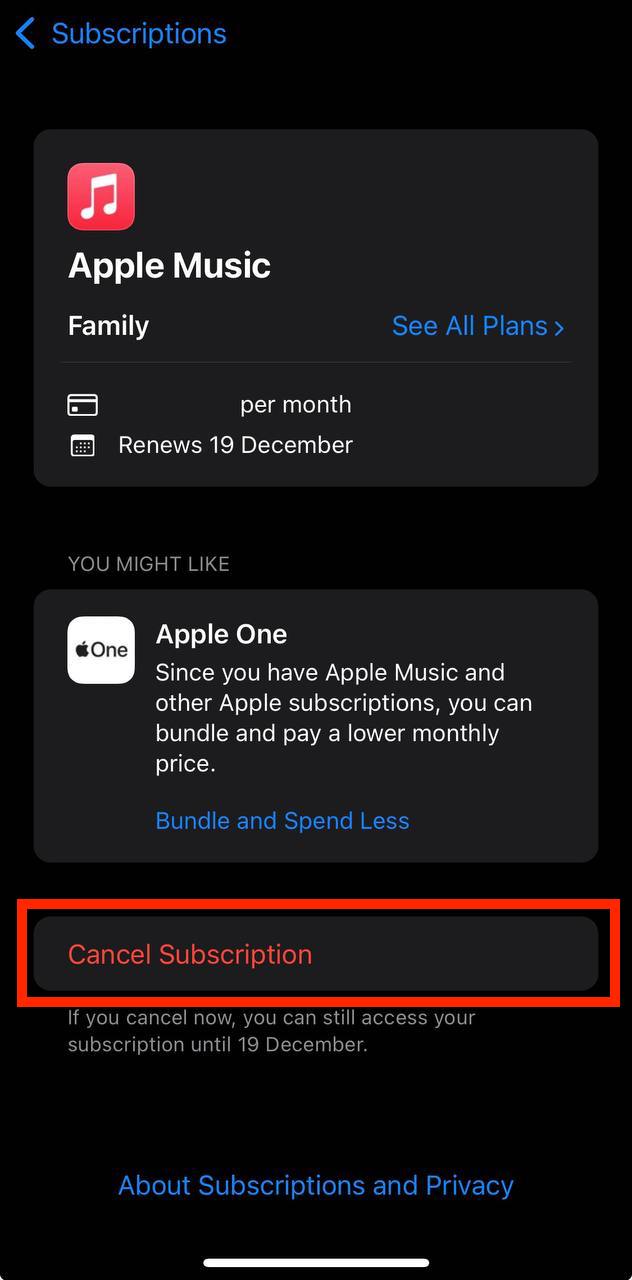
Show screenshot.Tap to Cancel Subscription. You may need to scroll down to locate the Cancel Subscription button. If the button is missing or a red expiration message appears, the subscription has already been canceled.
Show screenshot.
Cancel a subscription on your Mac
- Open the System Settings app.
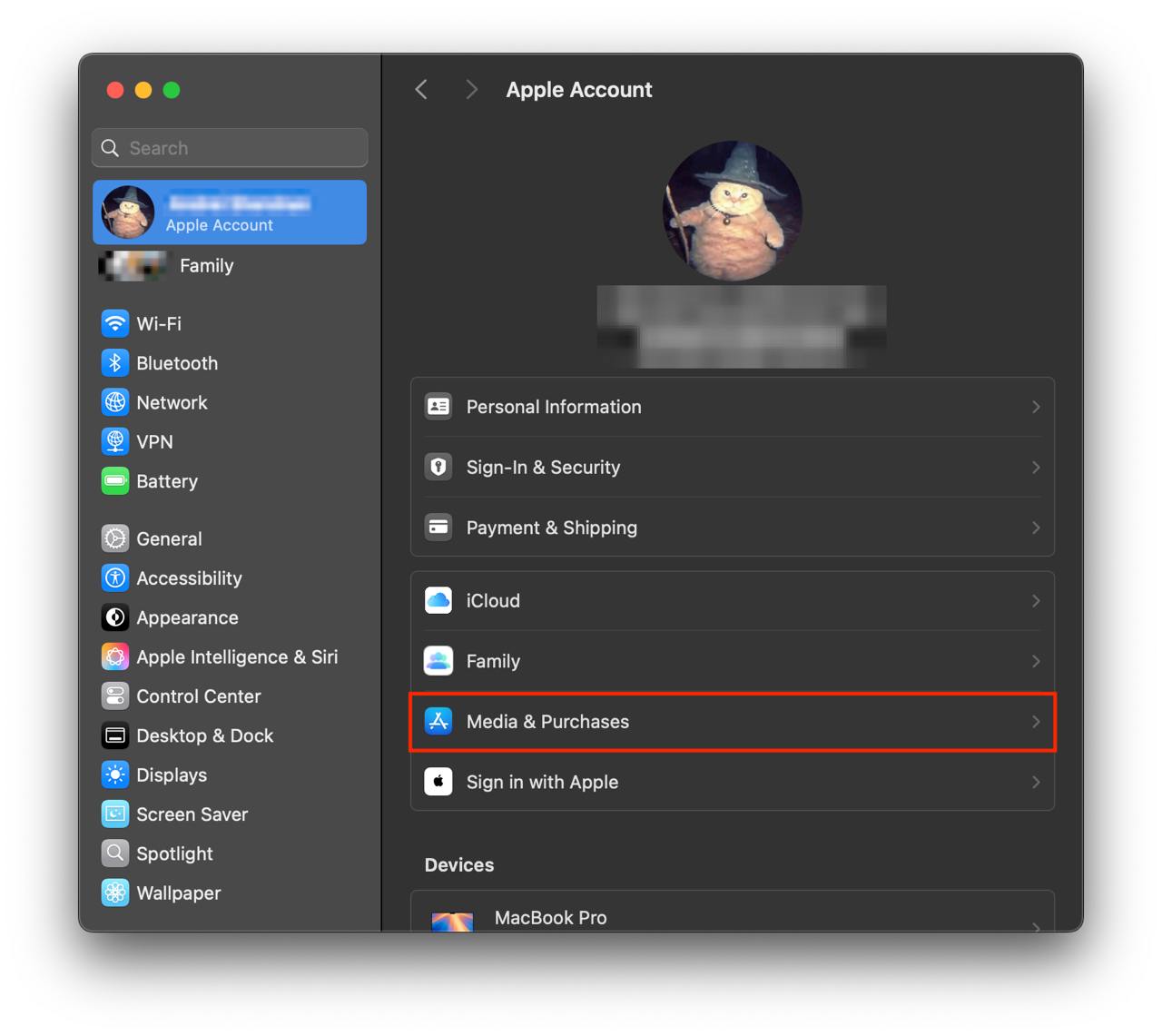
- Click your name - "Apple Account" in the top-right corner.
Click to "Media & Purchases" in the left-hand menu.
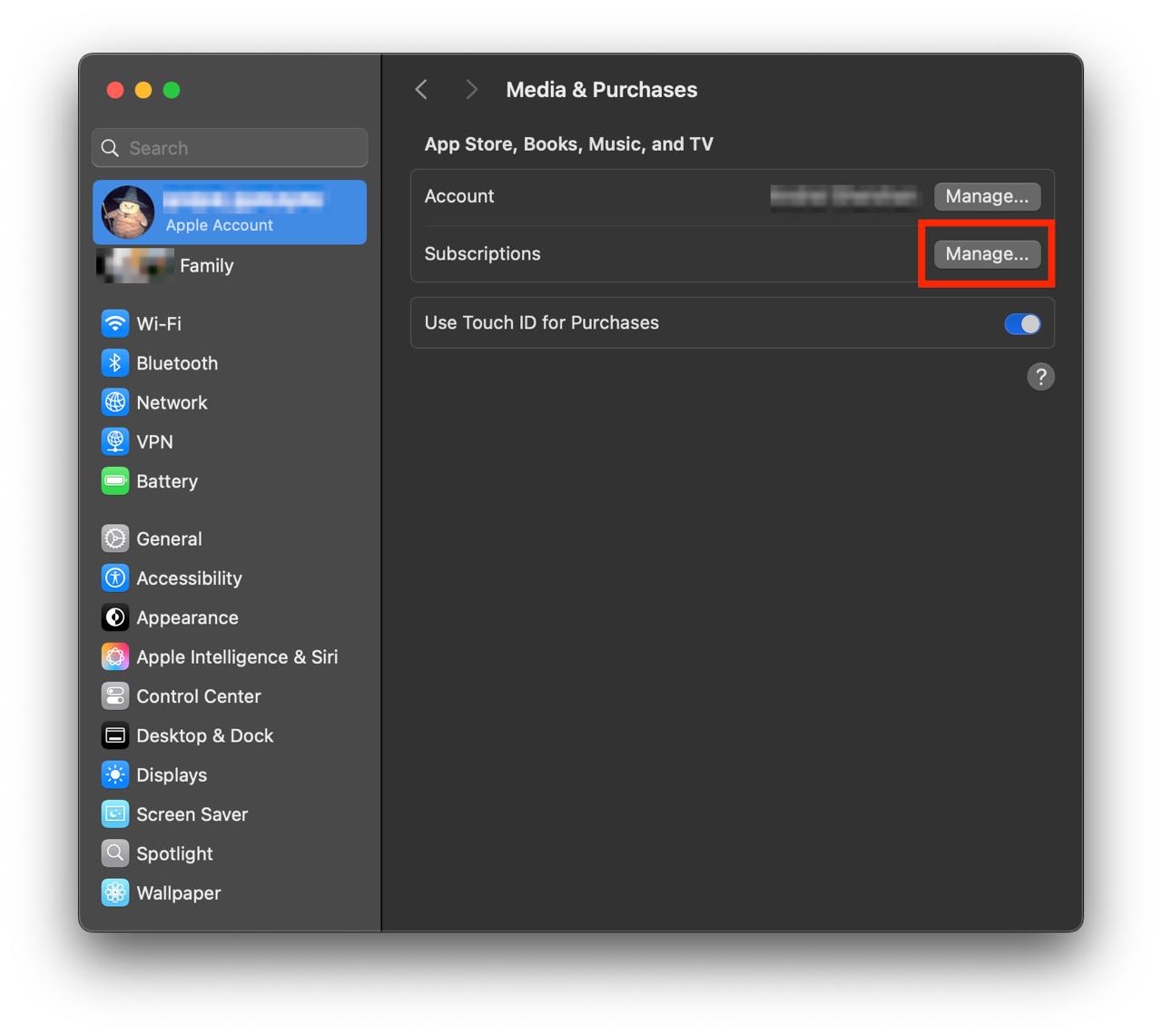
Show screenshot.Click to the "Manage..." button next to "Subscriptions" in the left-hand menu.
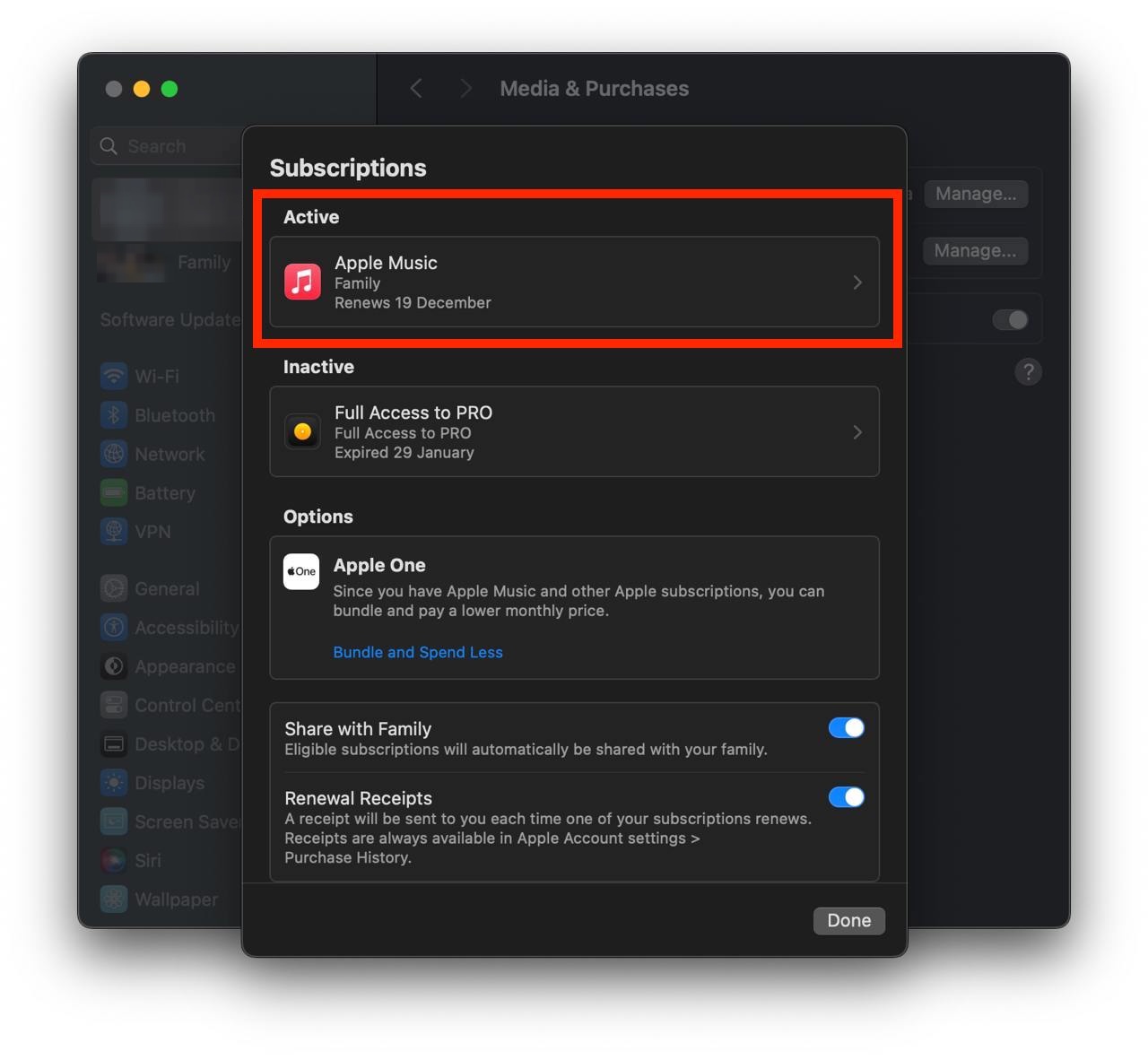
Show screenshot.Select the subscription you want to cancel. You may need to scroll down to locate the Cancel Subscription button. If the button is missing or a red expiration message appears, the subscription has already been canceled.
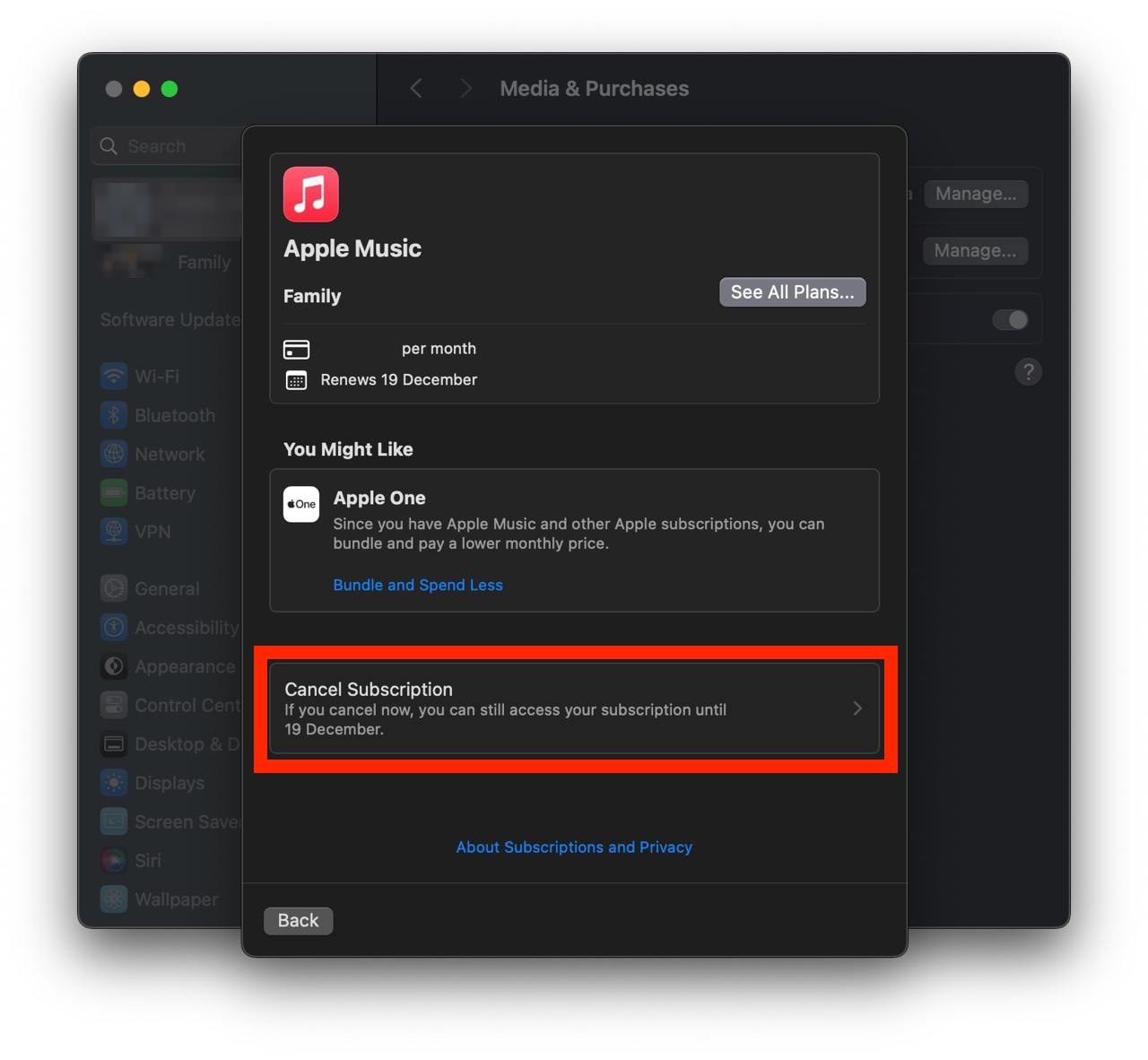
Show screenshot.Click the "Cancel Subscription" button.
Show screenshot.
Unable to find the subscription you want to cancel?
If you member of family account, you need to contact your Parent or family account owner to cancel the subscription by following the steps above.
If the receipt lists another Apple Account you use, sign in to that account and follow the steps in this guide to cancel the subscription.
Consider contacting app support or visiting the developer's website for assistance.
Follow by this link to discover the 코인리치 in the App Store.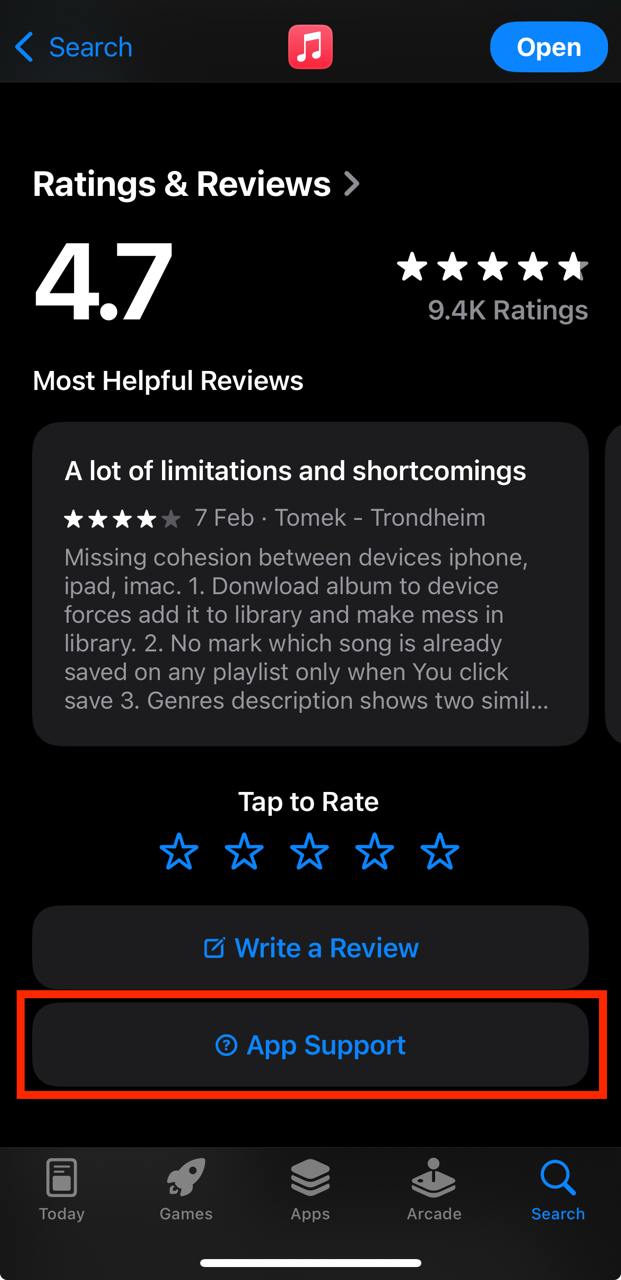
코인리치 subscriptions
브론즈 멤버십
출석 보상 증가, 투자금 초기화권, 거래알림 구독 1명 등의 혜택을 제공합니다.
VIP 멤버십
브론즈 혜택 포함, 거래알림 구독 5명, 학습자료 제고 등 강화된 혜택을 제공합니다.