
How to cancel a subscription on PicWith
How to cancel a subscription on your iPhone
Discover how to cancel a subscription through Apple or one purchased via an app on the App Store.
- Open the Settings app.
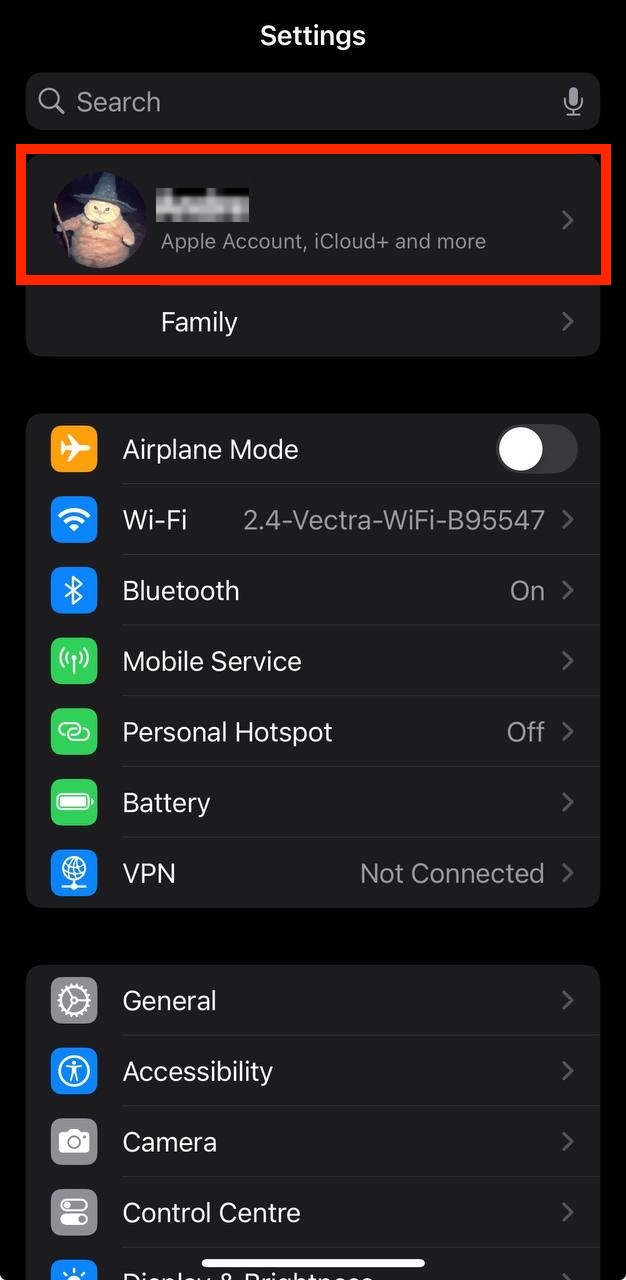
- Tap your name - "Apple Account, iCloud and more"
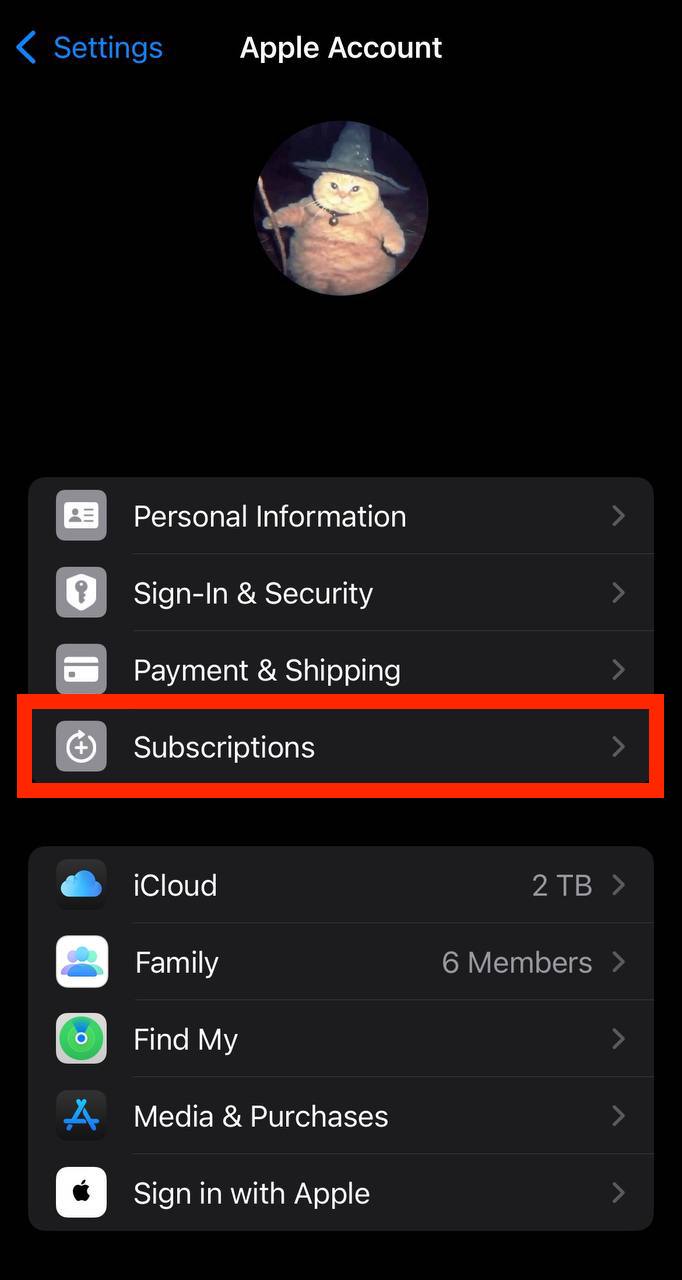
In the first section, tap Subscriptions.
Show screenshot.Select the PicWith subscription you want to cancel.
Show screenshot.Tap to Cancel Subscription. You may need to scroll down to locate the Cancel Subscription button. If the button is missing or a red expiration message appears, the subscription has already been canceled.
Show screenshot.


Cancel a subscription on your Mac
- Open the System Settings app.
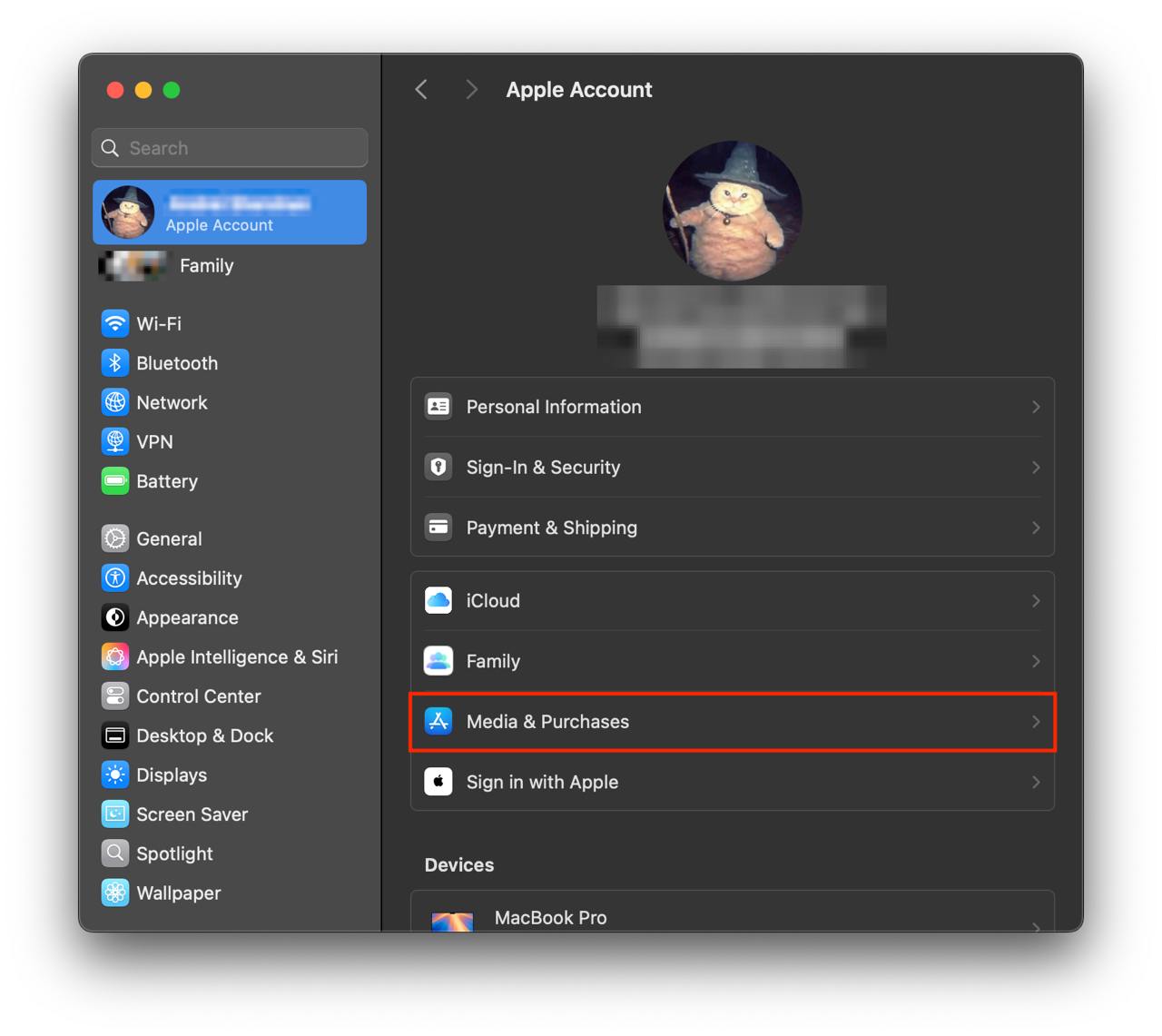
- Click your name - "Apple Account" in the top-right corner.
Click to "Media & Purchases" in the left-hand menu.
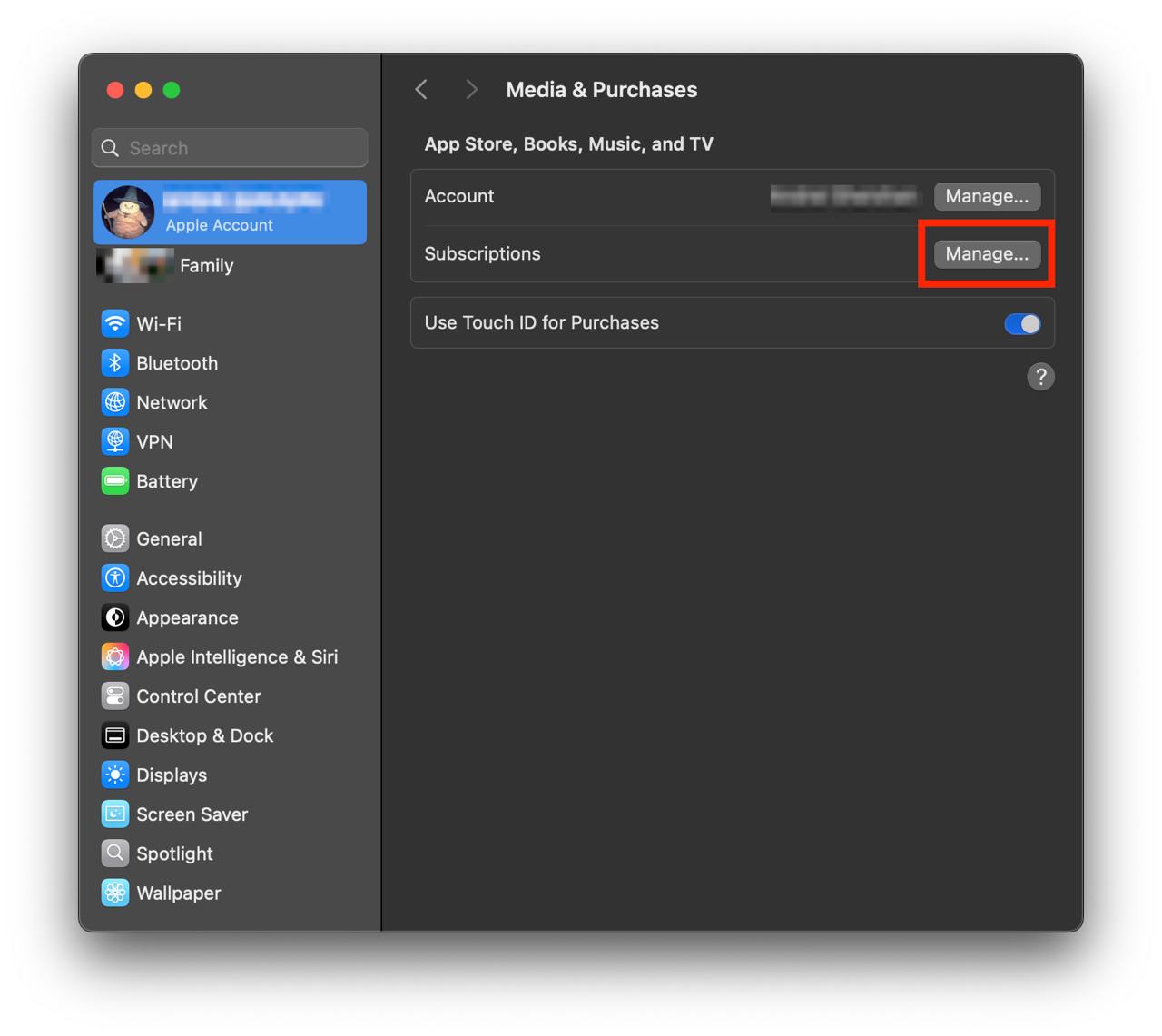
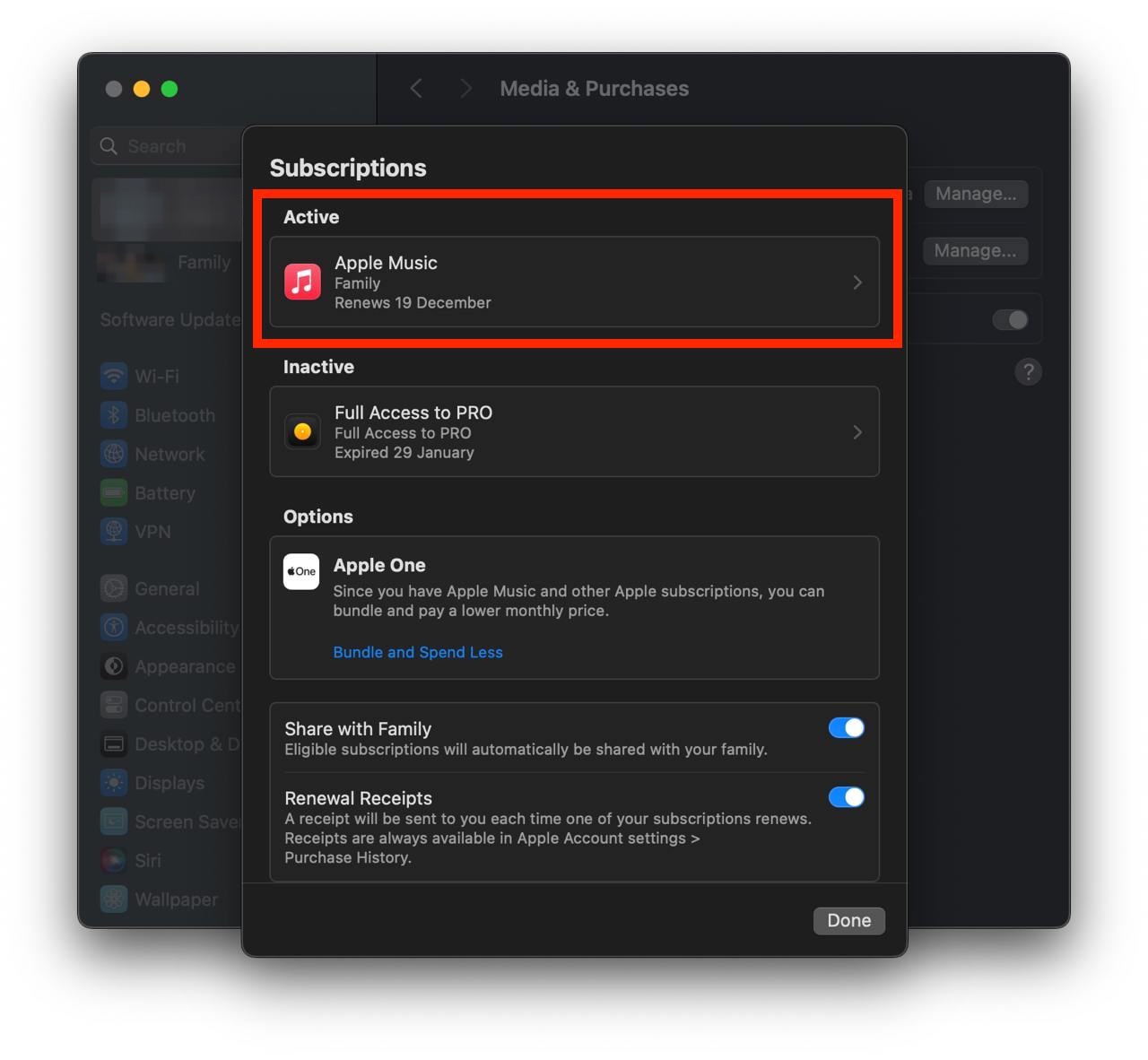
Show screenshot.Click to the "Manage..." button next to "Subscriptions" in the left-hand menu.
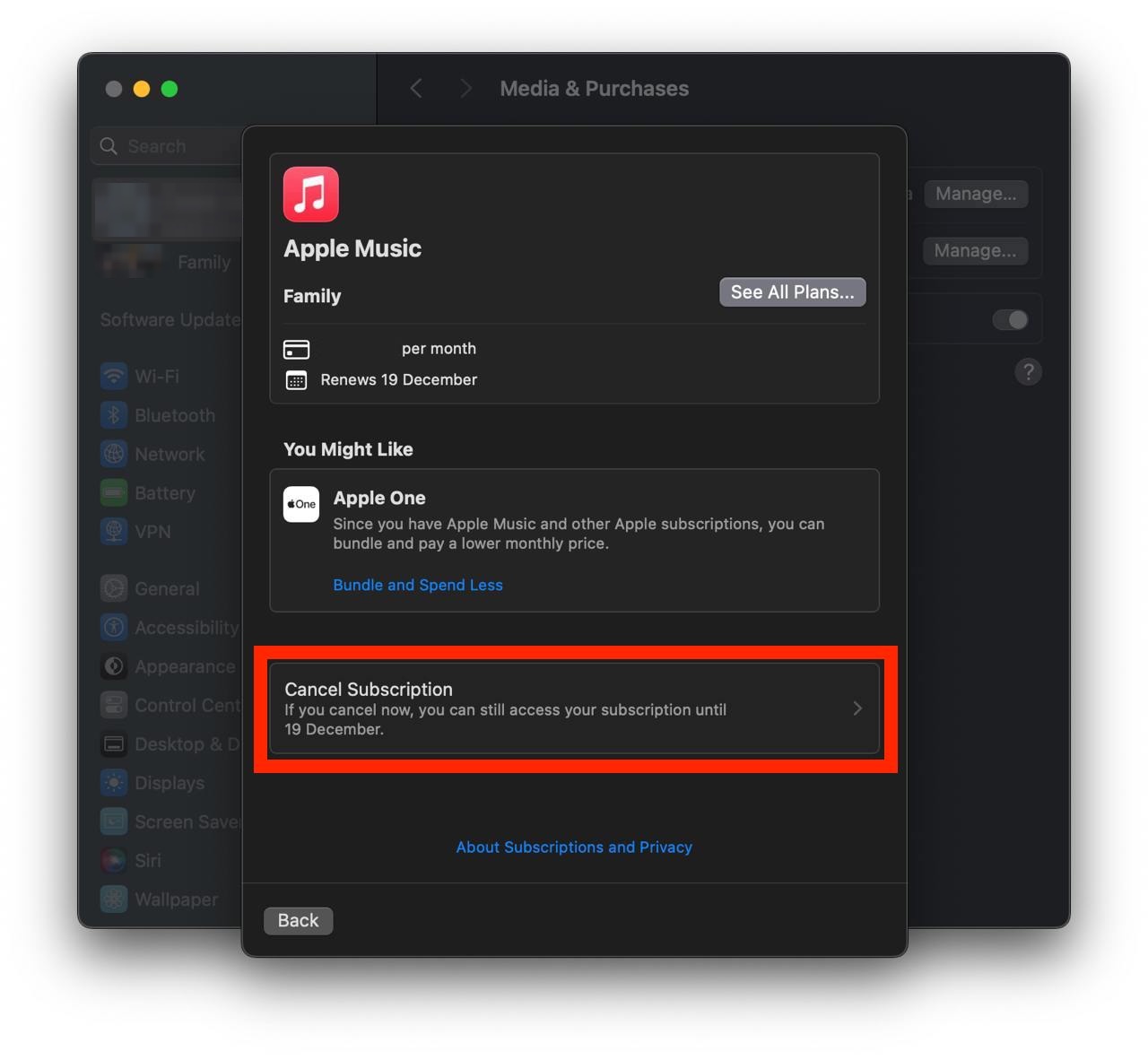
Show screenshot.Select the subscription you want to cancel. You may need to scroll down to locate the Cancel Subscription button. If the button is missing or a red expiration message appears, the subscription has already been canceled.
Show screenshot.Click the "Cancel Subscription" button.
Show screenshot.
Unable to find the subscription you want to cancel?
If you member of family account, you need to contact your Parent or family account owner to cancel the subscription by following the steps above.
If the receipt lists another Apple Account you use, sign in to that account and follow the steps in this guide to cancel the subscription.
Consider contacting app support or visiting the developer's website for assistance.
Follow by this link to discover the PicWith in the App Store.
PicWith subscriptions
ライトプラン
月5回、1回につき8枚の写真を生成。人物1人を登録して、行きたい場所での自然なポーズ写真をAIが自動生成します
スタンダードプラン
月15回、1回につき8枚の写真を最大解像度で生成。人物5人まで登録可能。旅行や日常のお出かけをもっと楽しめます
プレミアムプラン
月35回、1回につき8枚の写真を最大解像度で生成。人物10人まで登録可能。ヘビーユーザー向けの充実プラン。