
How to cancel a subscription on Siluna
How to cancel a subscription on your iPhone
Discover how to cancel a subscription through Apple or one purchased via an app on the App Store.
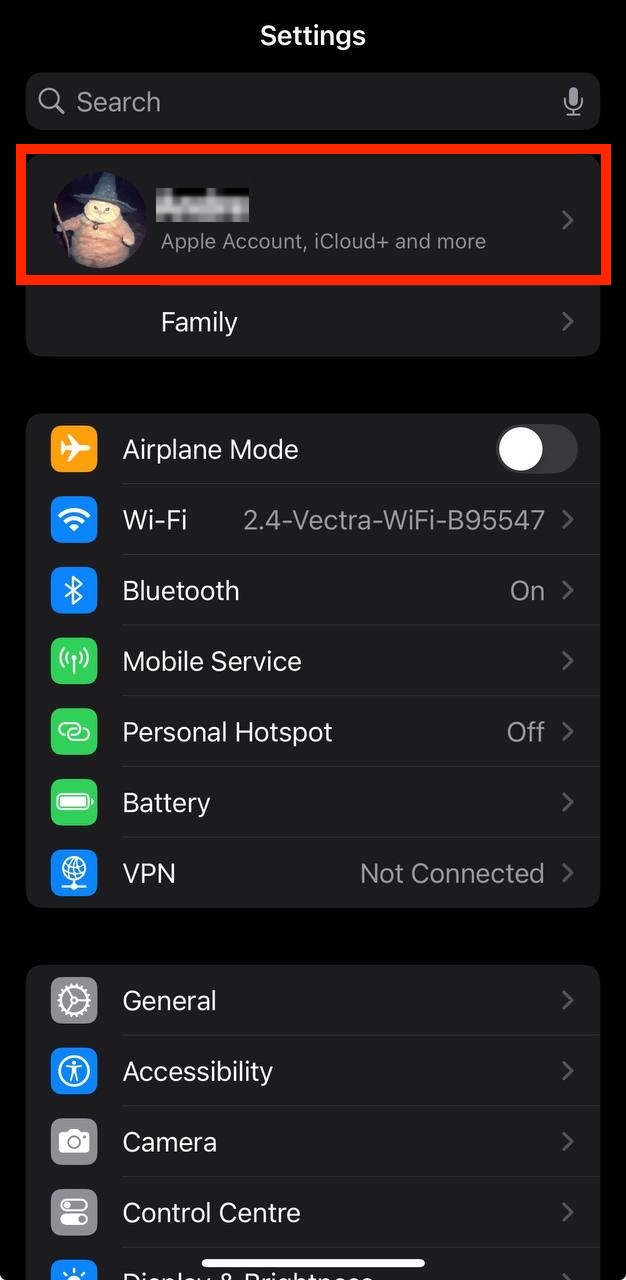
- Open the Settings app.
- Tap your name - "Apple Account, iCloud and more"
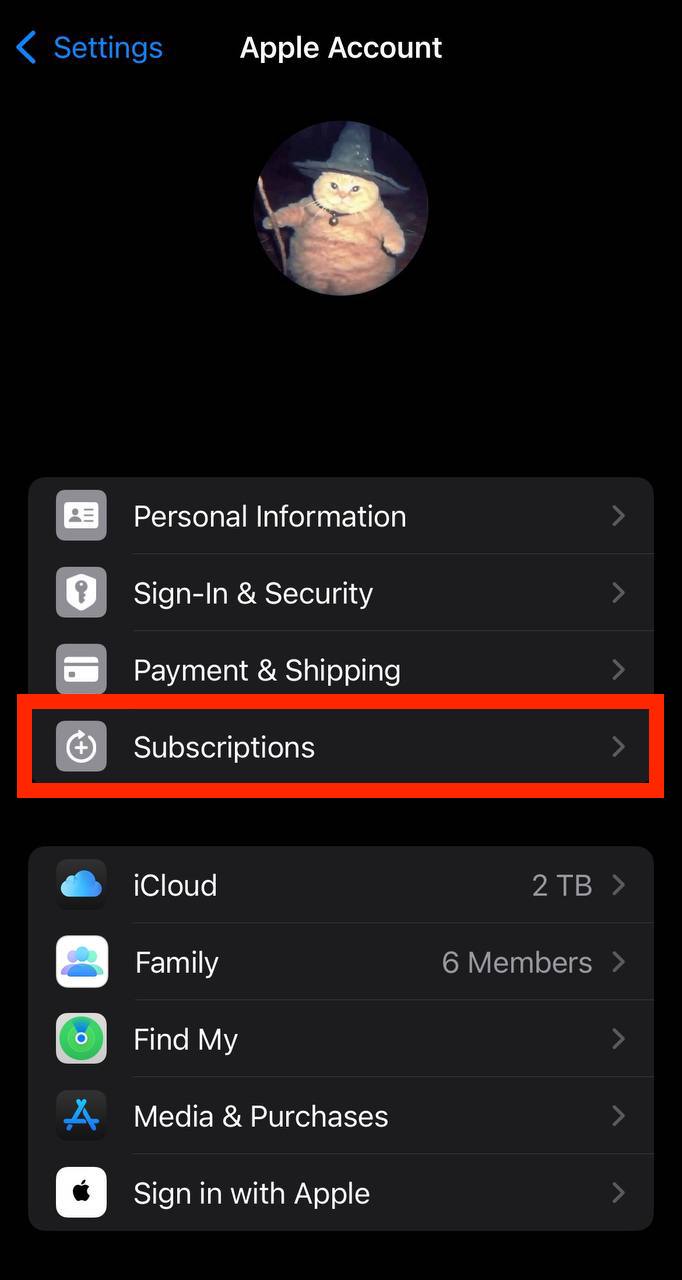
In the first section, tap Subscriptions.
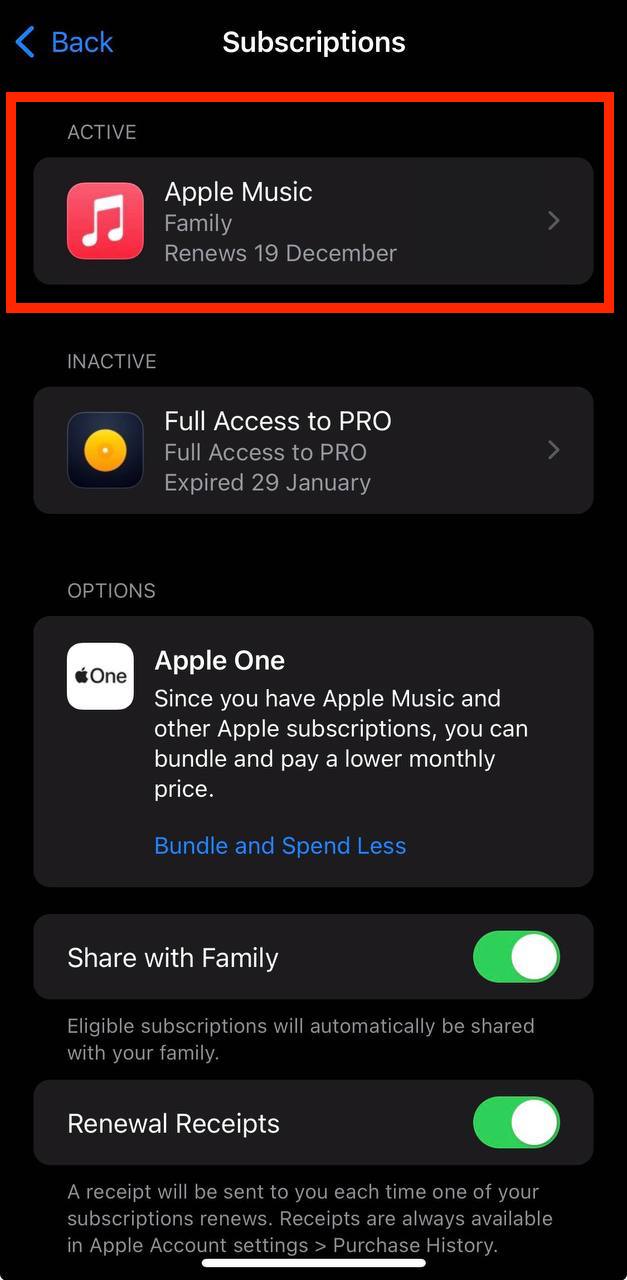
Show screenshot.Select the Siluna subscription you want to cancel.
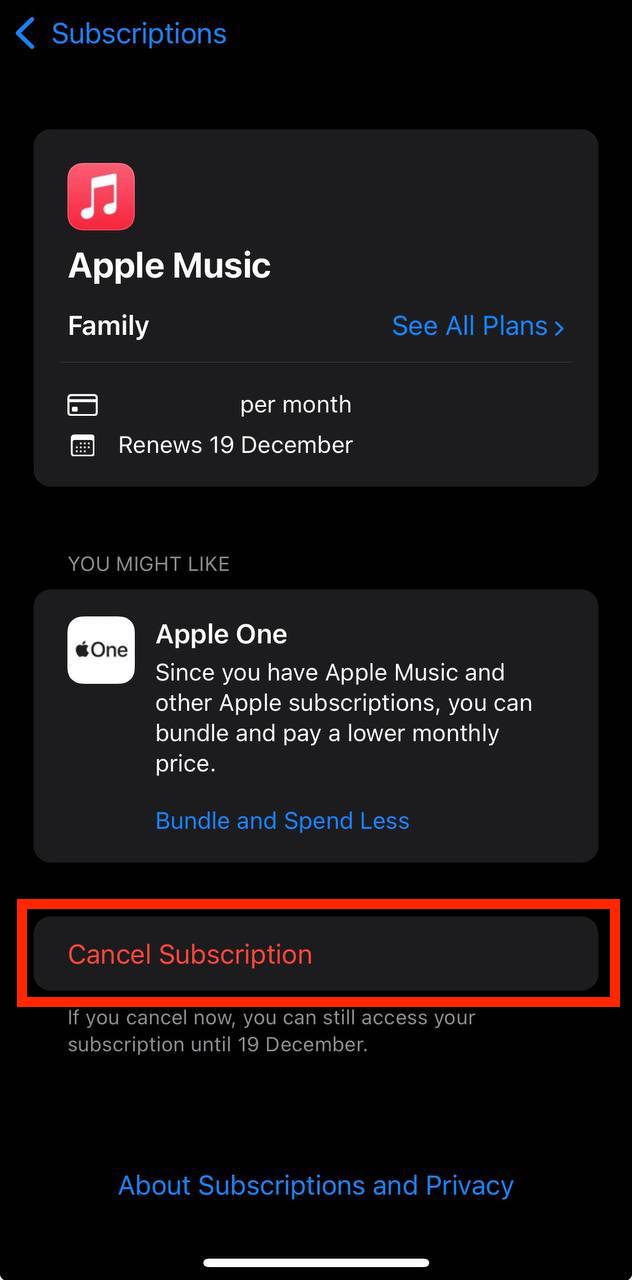
Show screenshot.Tap to Cancel Subscription. You may need to scroll down to locate the Cancel Subscription button. If the button is missing or a red expiration message appears, the subscription has already been canceled.
Show screenshot.
Cancel a subscription on your Mac
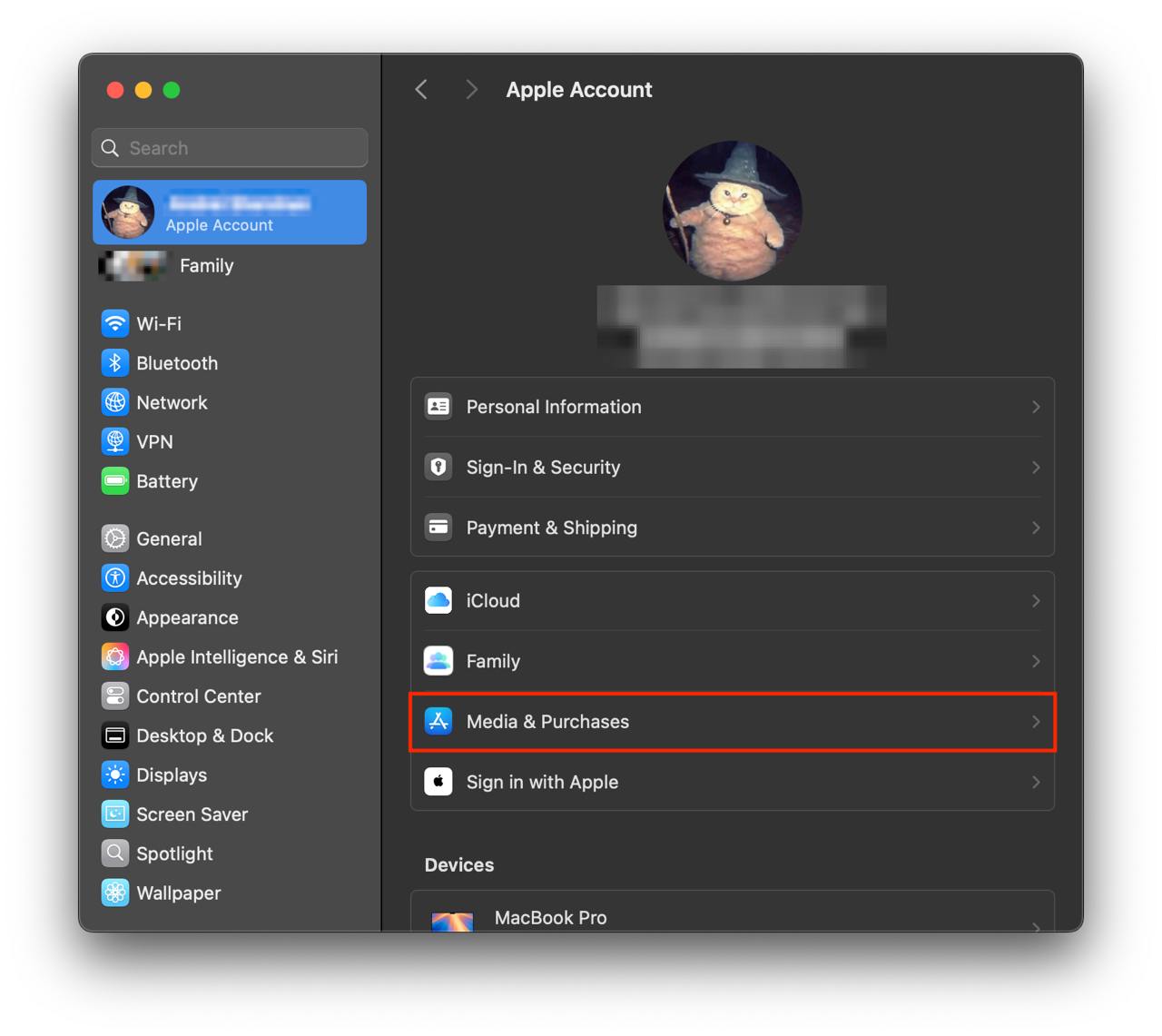
- Open the System Settings app.
- Click your name - "Apple Account" in the top-right corner.
Click to "Media & Purchases" in the left-hand menu.
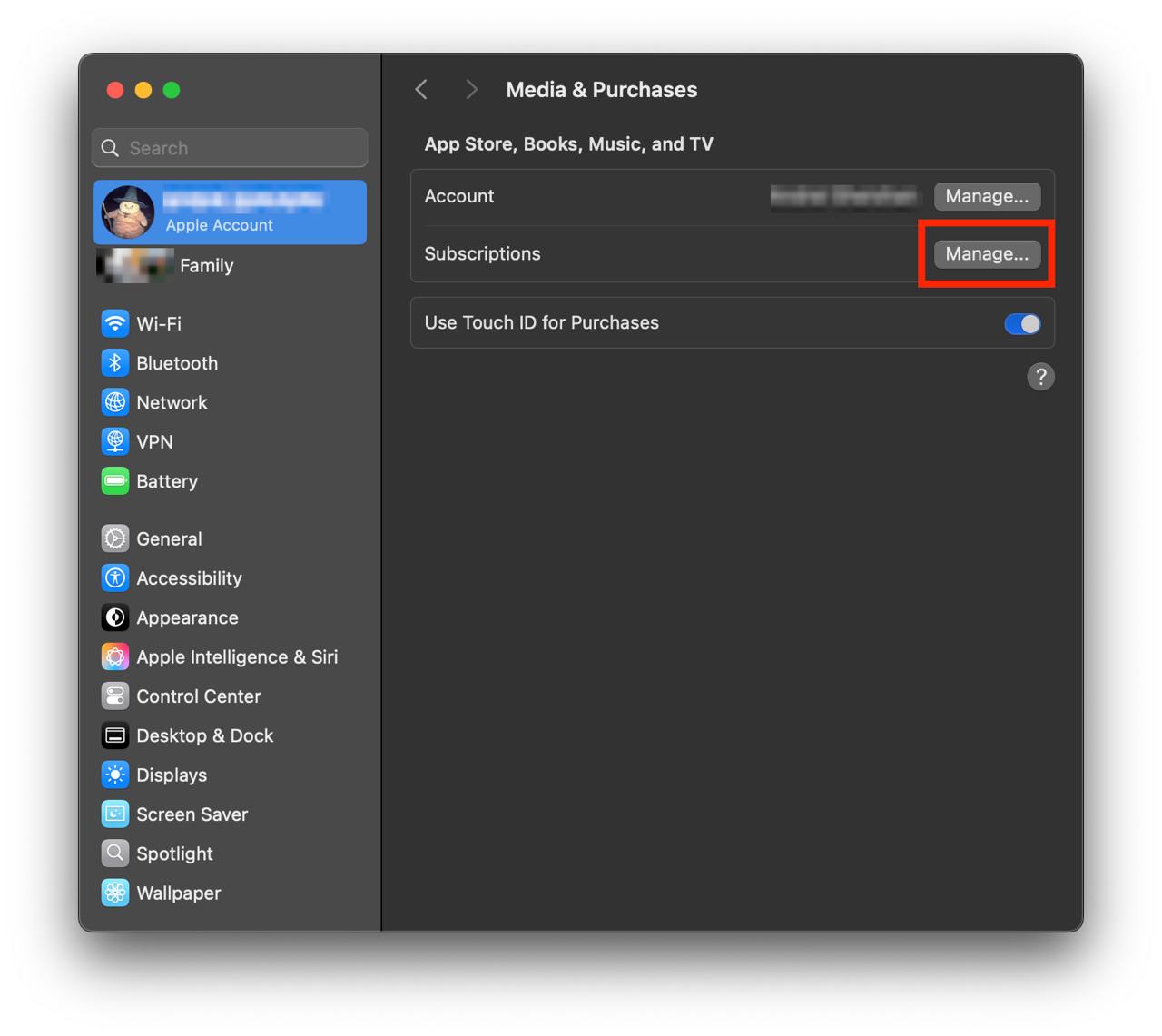
Show screenshot.Click to the "Manage..." button next to "Subscriptions" in the left-hand menu.
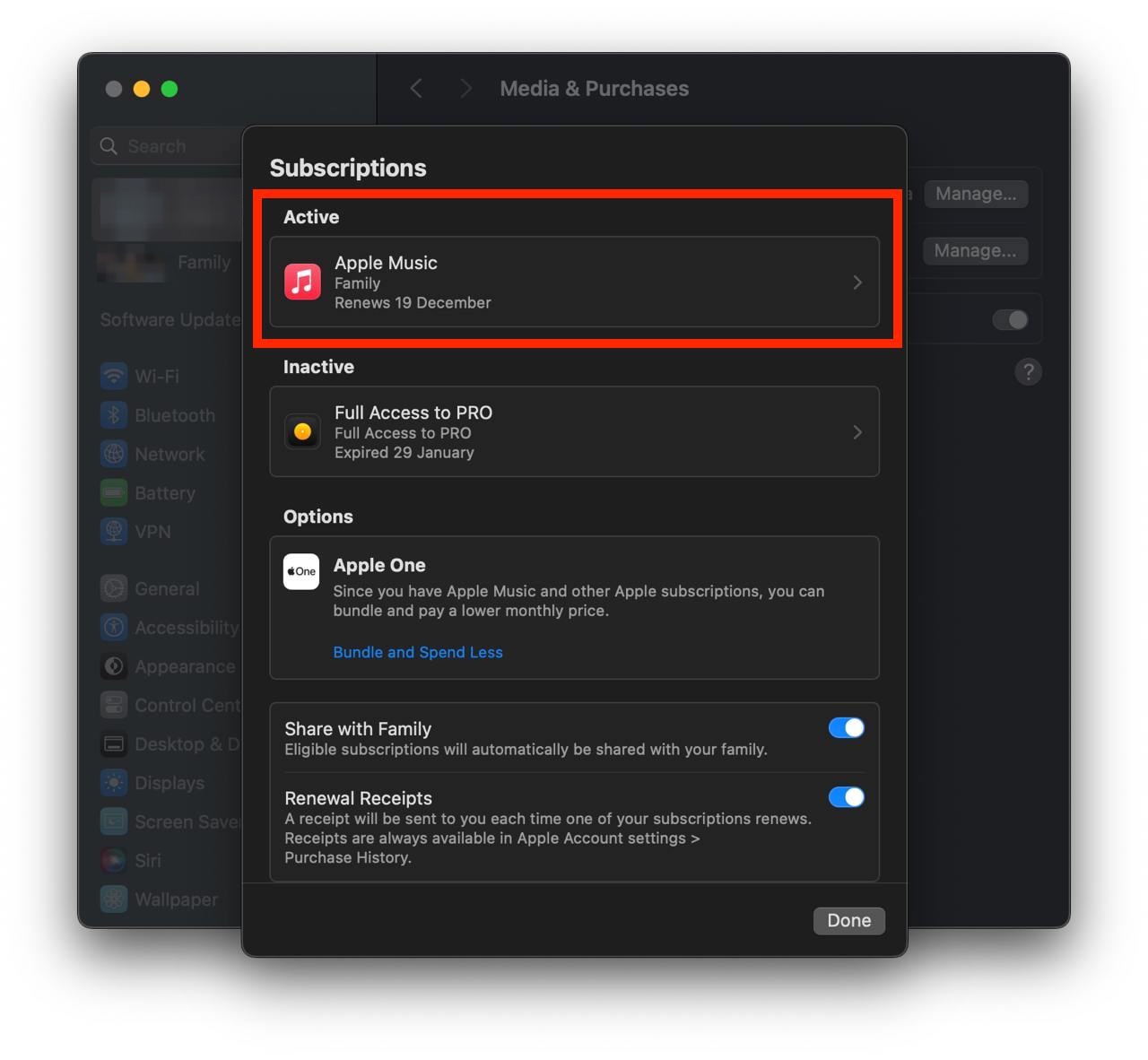
Show screenshot.Select the subscription you want to cancel. You may need to scroll down to locate the Cancel Subscription button. If the button is missing or a red expiration message appears, the subscription has already been canceled.
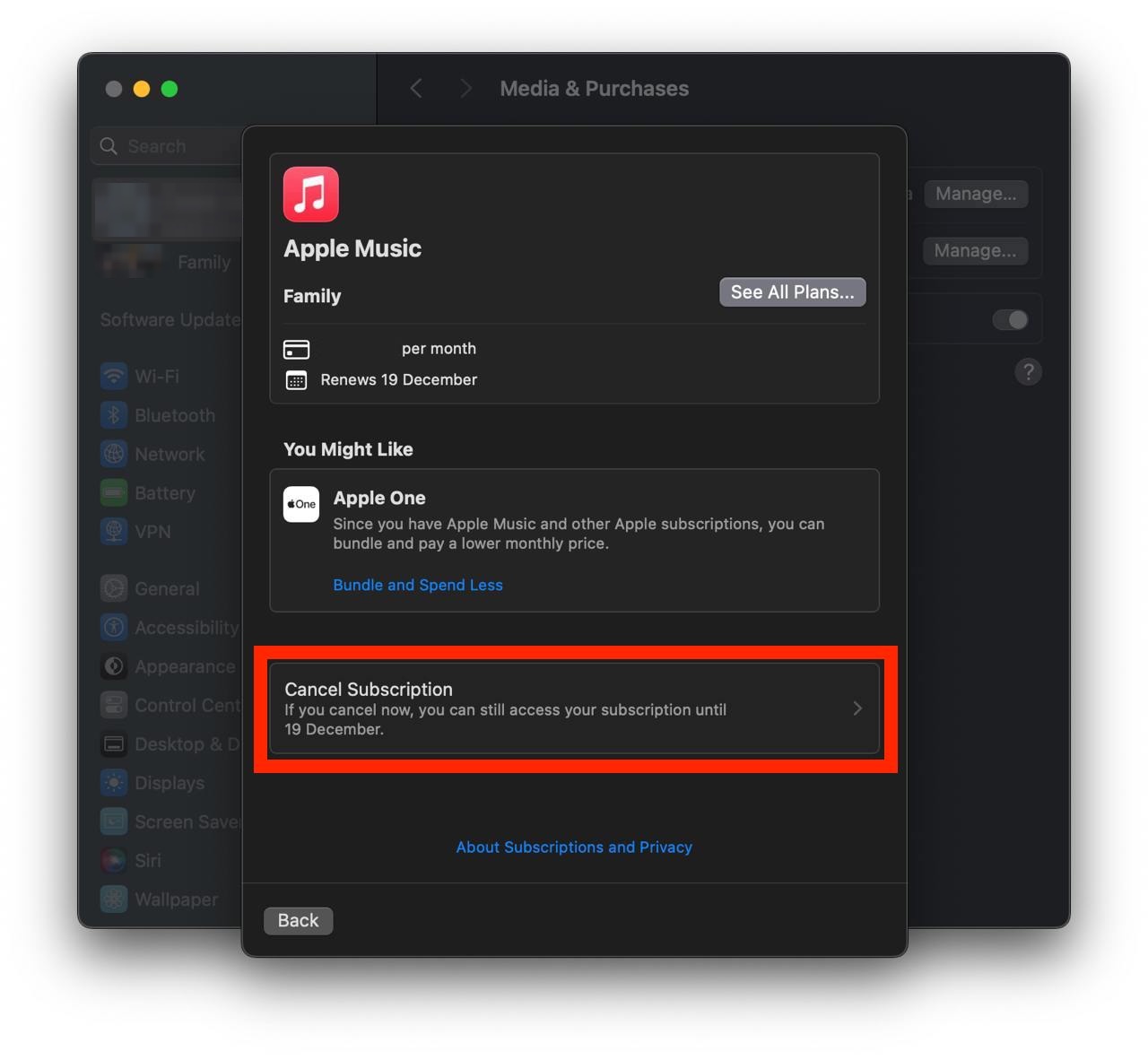
Show screenshot.Click the "Cancel Subscription" button.
Show screenshot.
Unable to find the subscription you want to cancel?
If you member of family account, you need to contact your Parent or family account owner to cancel the subscription by following the steps above.
If the receipt lists another Apple Account you use, sign in to that account and follow the steps in this guide to cancel the subscription.
Consider contacting app support or visiting the developer's website for assistance.
Follow by this link to discover the Siluna in the App Store.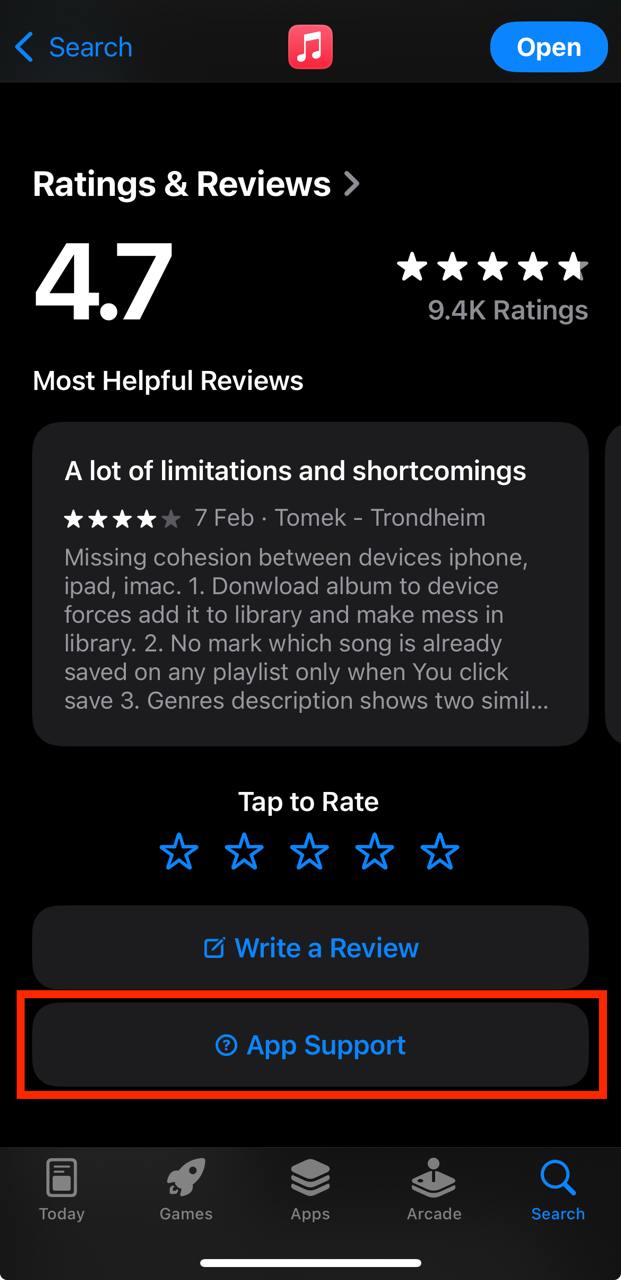
Siluna subscriptions
Siluna Plus – Weekly
55 HQ cutouts every week
Siluna Premium – Weekly
99 HQ cutouts every week
Siluna Plus – Monthly
240 HQ cutouts every month
Siluna Premium – Monthly
400 HQ cutouts every month
Siluna Plus – Annual
2,889 HQ cutouts every year
Siluna Premium – Annual
5,000 HQ cutouts every year