How to Stop App Tracking on iPhone (iOS 27 Guide)

Last updated: October 21, 2026. Settings paths checked against Apple's support pages for iOS 26 and iOS 27.
To stop app tracking on iPhone, open Settings → Privacy & Security → Tracking and turn off Allow Apps to Request to Track. Apps then can't show the tracking prompt, and every app that asks is treated as if you tapped Ask App Not to Track. That stops cross-app ad tracking, but Safari, location and Apple's own ads have separate settings, covered below.
How to turn off app tracking for every app
- Open Settings.
- Tap Privacy & Security.
- Tap Tracking.
- Turn off Allow Apps to Request to Track.
- If some apps already had permission, iOS asks whether to let them keep it or ask them all to stop. Choose the option that asks them to stop.
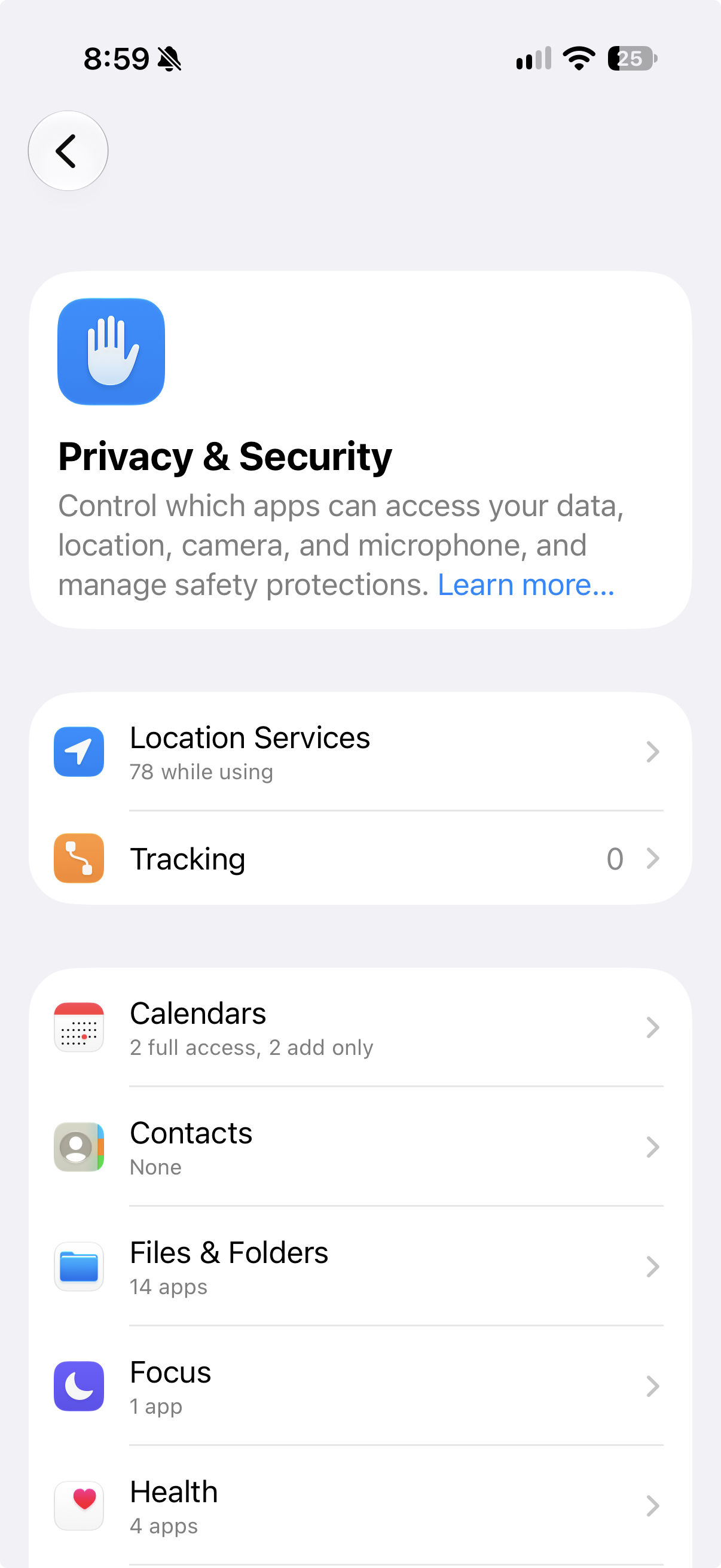
With this switch off, you won't see tracking prompts at all, and each app that asks for permission is treated as if you tapped Ask App Not to Track, according to Apple. You can still use every feature of the app either way.
How to stop tracking for one app
The same Tracking screen lists every app that has asked to track you, with a switch next to each. Turn off the switch for any app you want to stop.

This is also where earlier choices live. If you tapped Allow on a prompt months ago, that app keeps permission until you turn its switch off here.
What "Ask App Not to Track" actually does
When you tap Ask App Not to Track, the app loses access to your iPhone's advertising identifier, and under Apple's rules it also may not track you using other information that identifies you or your device, like your email address, as Apple's support page states.
App Tracking Transparency covers tracking across other companies' apps and websites. It doesn't stop an app from using the data you give it directly, such as what you watch, buy or search for inside that app. Apple's own apps are outside it too: regulators objected that Apple uses data from its ecosystem in its own apps without showing a consent screen, TechCrunch reported.
Most iPhone users already say no. AppsFlyer puts the true opt-in rate at about 40% of users who see the prompt, in its opt-in measurement analysis.
Why "Allow Apps to Request to Track" is greyed out
Apple lists three cases where the setting can't be turned on, on its support page:
- Your Apple Account is managed by a school or employer.
- Your iPhone uses a configuration profile that limits tracking.
- Your Apple Account is less than 3 days old.
Child accounts and users under 18 by birth year are also locked out of the setting, as Apple Support staff have explained in its community forum. In every one of these cases, apps are already denied tracking by default, so no app gets your advertising identifier while the switch is grey.
What changes for EU users in iOS 27.2
Starting with iOS 27.2, developers distributing apps in the EU can show an alternative version of Apple's tracking prompt, 9to5Mac reported. In Germany, France, Italy, Poland and Romania, only the alternative version is allowed. The change follows an antitrust investigation by Germany's Federal Cartel Office.
The new prompt uses modified wording and formatting, and can link to "additional information" about why the app is asking, according to TechCrunch.
The part EU readers should act on is re-prompting. Apps in the EU will be allowed to ask again one year after your previous choice, whether you allowed or rejected tracking. That doesn't apply if you've turned off the device-level "Allow Apps to Request to Track" setting, according to Apple's documentation, as reported by PYMNTS. So in the EU, the master switch is now the only way to avoid a fresh round of prompts every year.
How to stop tracking in Safari
App Tracking Transparency doesn't cover websites. Safari has its own protection, and its default setting is weaker than many guides say.
Since iOS 26, Safari's Advanced Fingerprinting Protection is on for all browsing by default, 9to5Mac reported. But the fuller setting, Advanced Tracking and Fingerprinting Protection, which also strips tracking IDs from links and blocks known tracker domains, is on by default only in Private Browsing, as Taggrs' testing of Safari 26 shows.
To turn it on everywhere:
- Open Settings → Apps → Safari.
- Scroll down and tap Advanced.
- Tap Advanced Tracking and Fingerprinting Protection.
- Choose All Browsing.

A few sites can break with stronger protection, usually checkout pages or embedded logins. If one does, switching the setting back to Private Browsing for a moment fixes it. Note that this is a Safari setting, so it doesn't affect tracking inside other apps or tracking by your carrier.
Other iPhone settings that limit tracking
| Setting | Where to find it | What it stops |
|---|---|---|
| Allow Apps to Request to Track | Settings → Privacy & Security → Tracking | Cross-app tracking by third-party apps |
| Advanced Tracking and Fingerprinting Protection | Settings → Apps → Safari → Advanced | Trackers and link tracking IDs in Safari |
| Personalized Ads | Settings → Privacy & Security → Apple Advertising | Apple using your data to target ads in the App Store, Apple News and Stocks |
| Location Services | Settings → Privacy & Security → Location Services | Apps reading your location; per-app access and Precise Location |
| App Privacy Report | Settings → Privacy & Security → App Privacy Report | Nothing by itself, but shows which apps used your data and which domains they contacted |
| Protect Mail Activity | Settings → Apps → Mail → Privacy Protection | Email senders seeing when you open a message or your IP address |
| Hide My Email | Settings → your name → iCloud | Apps and sites getting your real email address (iCloud+) |
| iCloud Private Relay | Settings → your name → iCloud → Private Relay | Websites in Safari seeing your IP address (iCloud+, not in every country) |
Turn off Apple's personalized ads
Ads that Apple delivers appear in the App Store, Apple News and Stocks. Turn off personalized ads in Settings → Privacy & Security → Apple Advertising, where you can also tap View Ad Targeting Information to see what Apple uses, as Apple's iPhone User Guide explains. Apple notes that this may not reduce the number of ads you see, only how targeted they are.

Limit location tracking
In Settings → Privacy & Security → Location Services, tap any app and choose Never, Ask Next Time or While Using the App, and turn off Precise Location for apps that only need your rough area, such as weather apps. Setting the App Store and Apple News to Never also turns off Apple's location-based ads, per Apple's advertising support page.
See what apps are doing with App Privacy Report
Turn on App Privacy Report in Settings → Privacy & Security. After a few days, it shows how often each app accessed your location, camera, microphone and contacts, and which web domains it contacted, which is the quickest way to spot an app quietly talking to ad networks.

Check whether an app tracks you before you install it
Every App Store listing has an App Privacy section, filled in by the developer, with up to three groups: Data Used to Track You, Data Linked to You and Data Not Linked to You. Anything listed under Data Used to Track You can only be used for tracking if you tap Allow, so that list shows what's at stake before you download.
AppsHunter app pages flag some of this too. Instagram's page, for example, warns about Background Location Access and labels the app With Ads.


Connect with friends and discover new content through photos, videos, and short-form entertainment. Share your daily moments and life's highlights, or dive into personalized feeds based on your interests.
Stop app tracking on iPhone FAQ
How do I stop all apps from tracking me on iPhone?
Go to Settings → Privacy & Security → Tracking and turn off Allow Apps to Request to Track. Every app that asks will be treated as if you tapped Ask App Not to Track.
Does "Ask App Not to Track" stop all tracking?
No. It blocks tracking across other companies' apps and websites, including through your advertising ID or email address. Apps can still use data you give them directly, and Apple's own apps aren't covered.
Why can't I turn on "Allow Apps to Request to Track"?
The setting is locked if your Apple Account is managed by a school or employer, your iPhone has a profile that limits tracking, your Apple Account is under 3 days old, or it's a child account. In each case, apps are denied tracking by default.
Do apps still work if I ask them not to track?
Yes. Apple says you can use the full capabilities of an app regardless of whether you allow it to track you.
Will apps keep asking me to allow tracking?
Outside the EU, an app can show the prompt once. In the EU, starting with iOS 27.2, apps can ask again a year after your last choice, unless you've turned off Allow Apps to Request to Track.
How do I stop Safari from tracking me?
Go to Settings → Apps → Safari → Advanced → Advanced Tracking and Fingerprinting Protection and choose All Browsing. By default, the full protection only runs in Private Browsing.
How do I turn off personalized ads on iPhone?
Go to Settings → Privacy & Security → Apple Advertising and turn off Personalized Ads. It changes how Apple targets ads in the App Store, Apple News and Stocks, not how many you see.
Pick apps that need less of your data
The easiest tracking to stop is the tracking you never sign up for. Before you install something new, check its App Privacy section on the App Store and its features and ad labels on AppsHunter, and if an app starts charging you unexpectedly, our guides cover getting an App Store refund and reporting a scam app.