
How to cancel a subscription on Chaton ai
How to cancel a subscription on your iPhone
Discover how to cancel a subscription through Apple or one purchased via an app on the App Store.
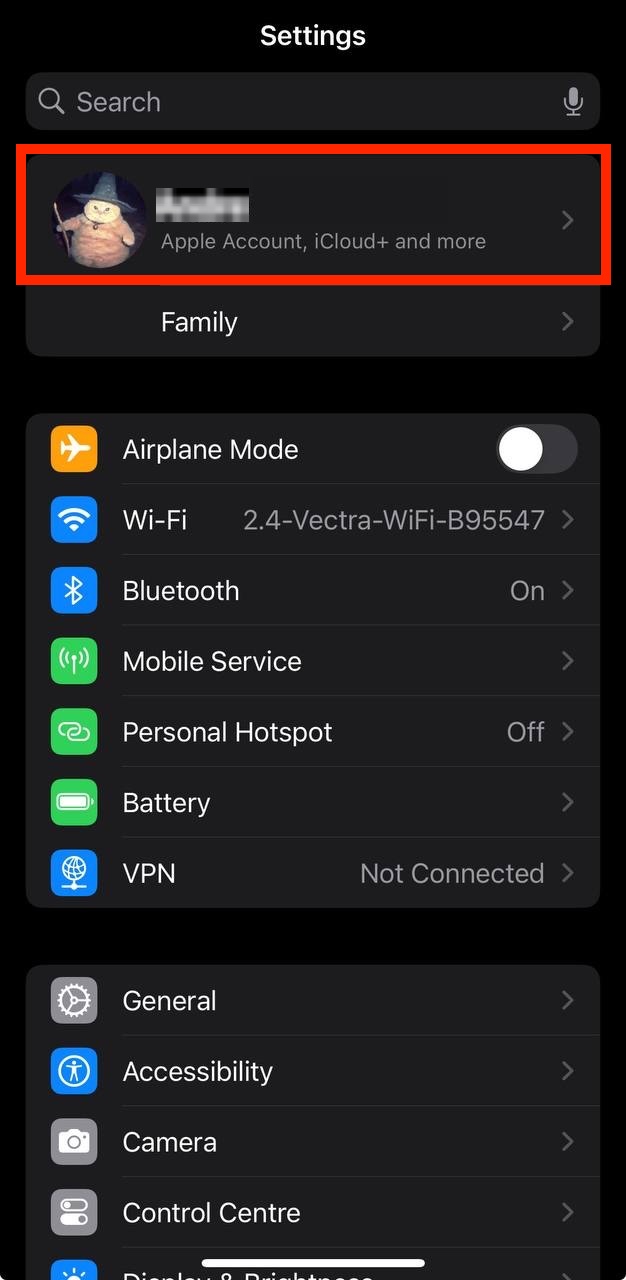
- Open the Settings app.
- Tap your name - "Apple Account, iCloud and more"
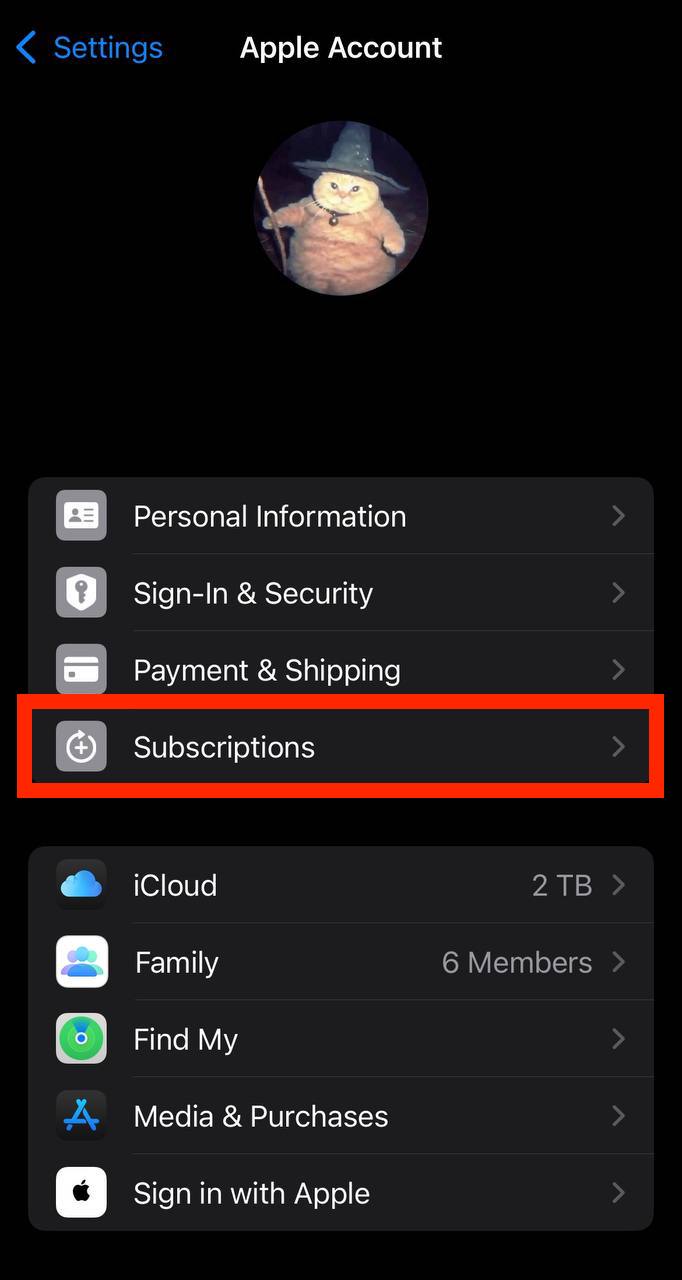
In the first section, tap Subscriptions.
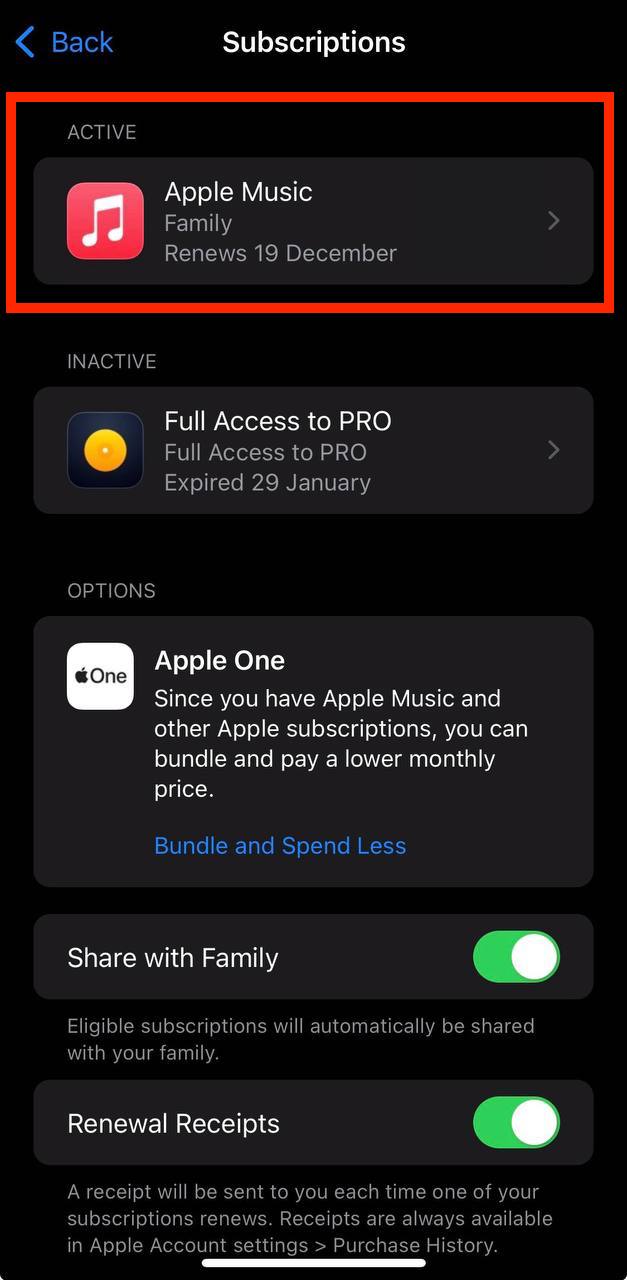
Show screenshot.Select the Chaton ai subscription you want to cancel.
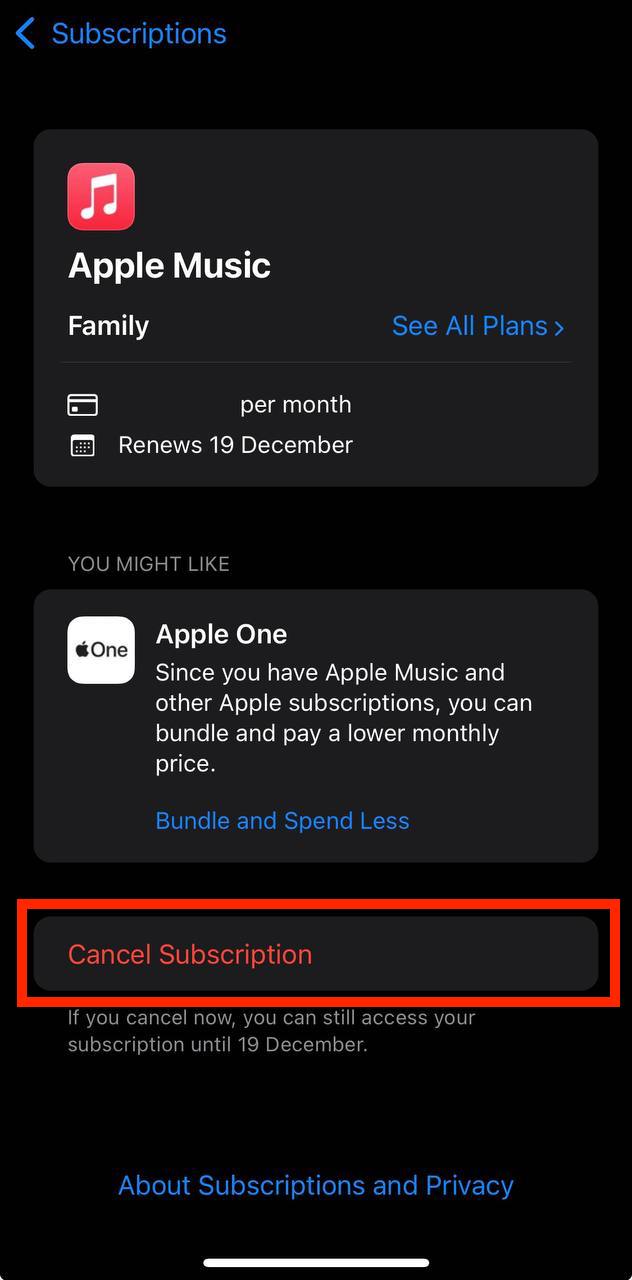
Show screenshot.Tap to Cancel Subscription. You may need to scroll down to locate the Cancel Subscription button. If the button is missing or a red expiration message appears, the subscription has already been canceled.
Show screenshot.
Cancel a subscription on your Mac
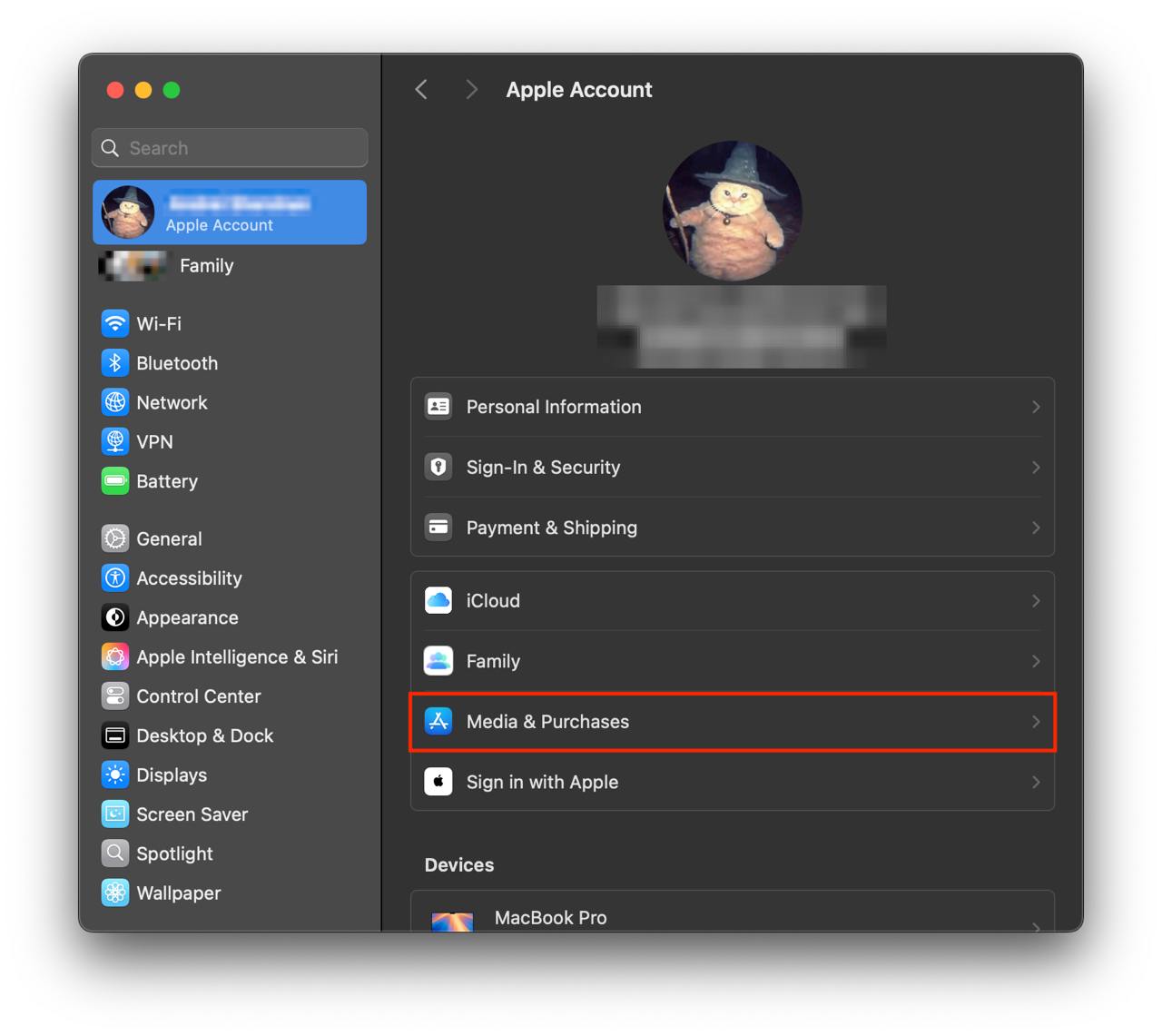
- Open the System Settings app.
- Click your name - "Apple Account" in the top-right corner.
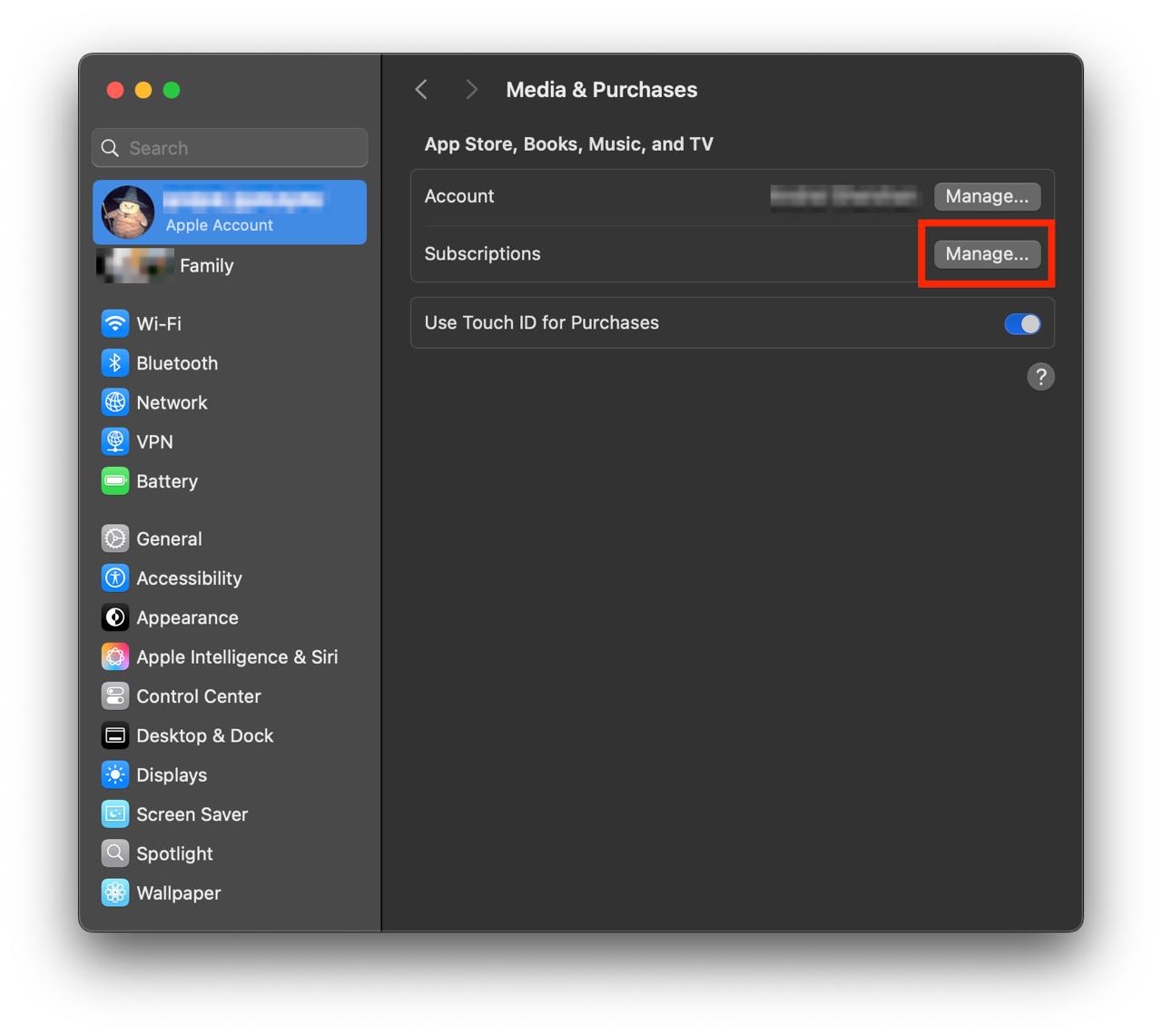
Click to "Media & Purchases" in the left-hand menu.
Show screenshot.Click to the "Manage..." button next to "Subscriptions" in the left-hand menu.
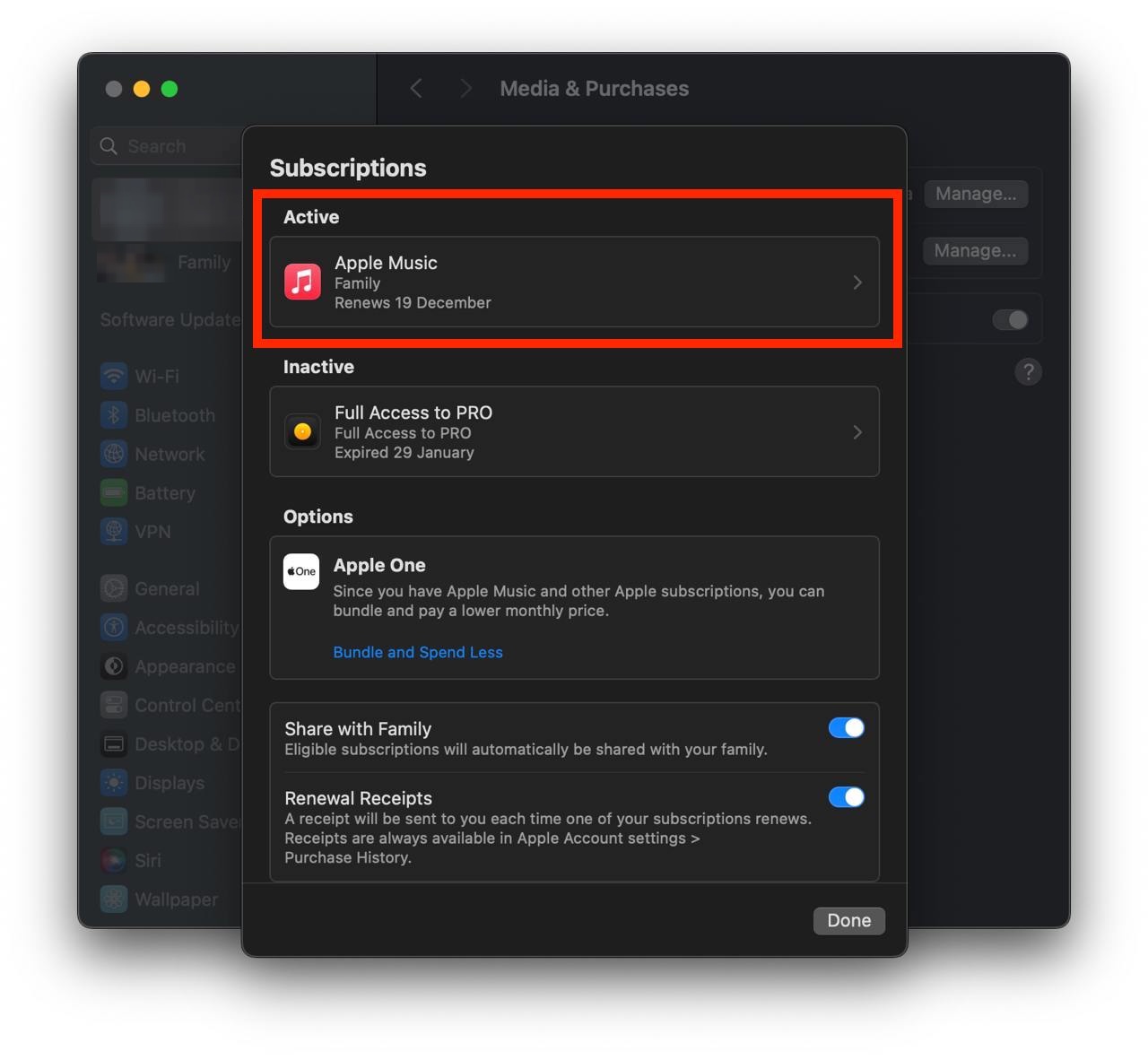
Show screenshot.Select the subscription you want to cancel. You may need to scroll down to locate the Cancel Subscription button. If the button is missing or a red expiration message appears, the subscription has already been canceled.
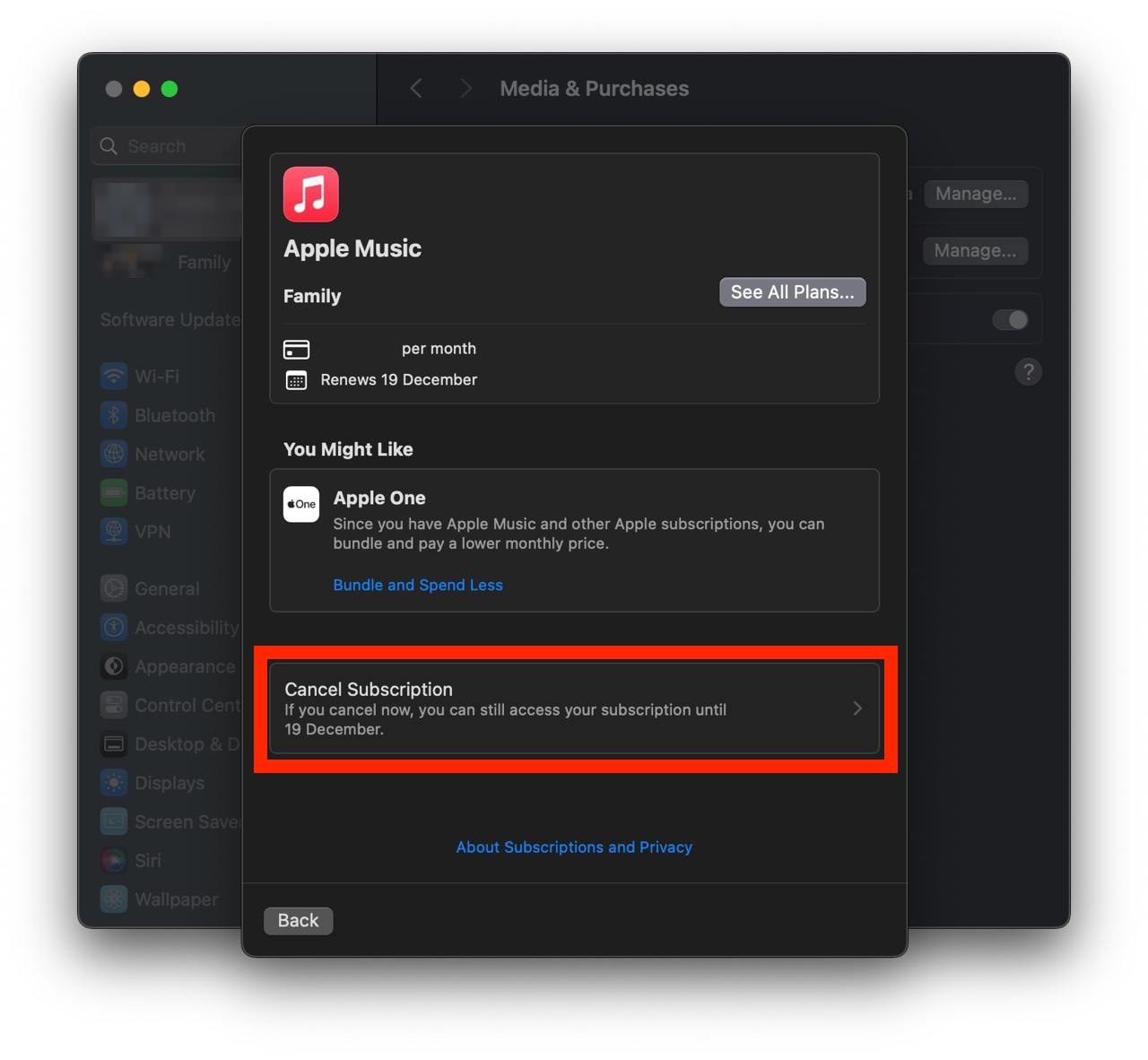
Show screenshot.Click the "Cancel Subscription" button.
Show screenshot.
Unable to find the subscription you want to cancel?
If you member of family account, you need to contact your Parent or family account owner to cancel the subscription by following the steps above.
If the receipt lists another Apple Account you use, sign in to that account and follow the steps in this guide to cancel the subscription.
Consider contacting app support or visiting the developer's website for assistance.
Follow by this link to discover the Chaton ai in the App Store.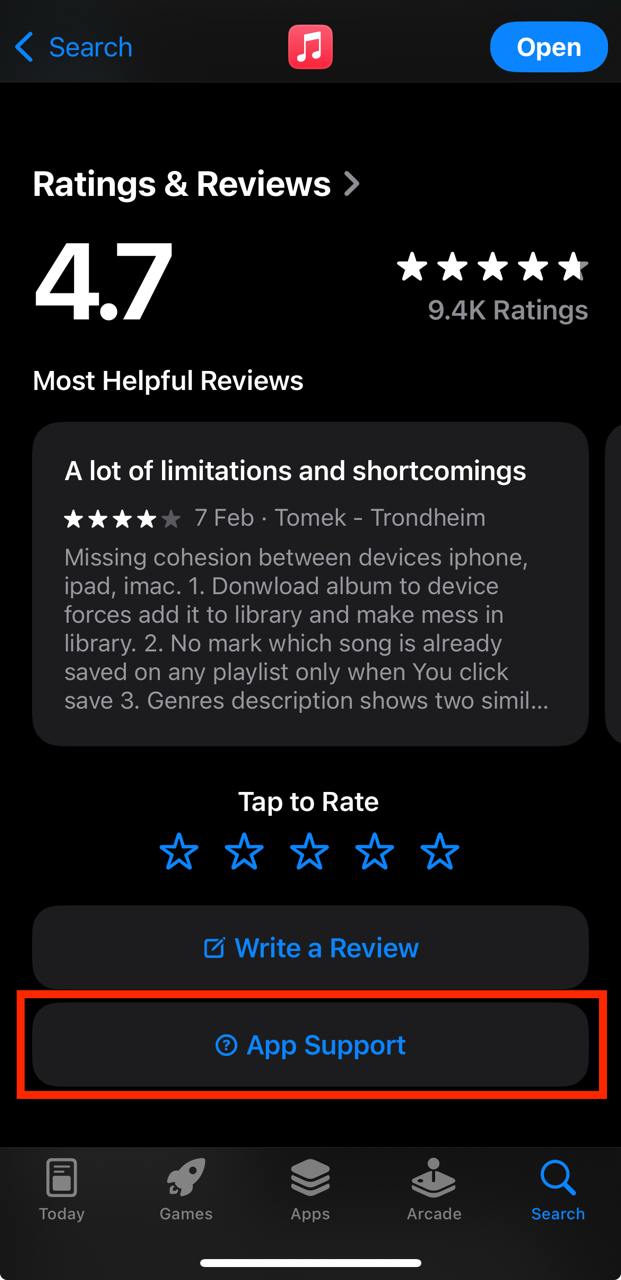
Chaton ai subscriptions
Weekly
Weekly
subscription per week
full access to functionality for a week
weekly subscription
weekly subscription
Subscription Per Monthly
full access to functionality for a month
Monthly subscription
Monthly subscription
Subscription Per Year
full access to functionality for a year