
How to cancel a subscription on Vocabbie
How to cancel a subscription on your iPhone
Discover how to cancel a subscription through Apple or one purchased via an app on the App Store.
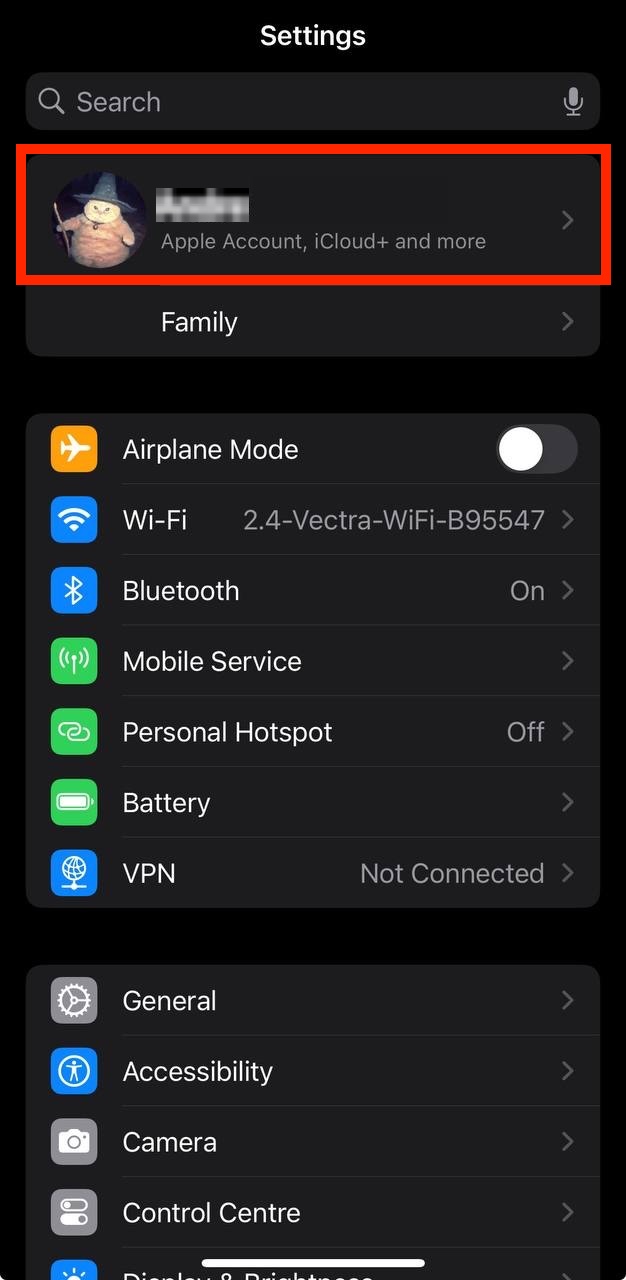
- Open the Settings app.
- Tap your name - "Apple Account, iCloud and more"
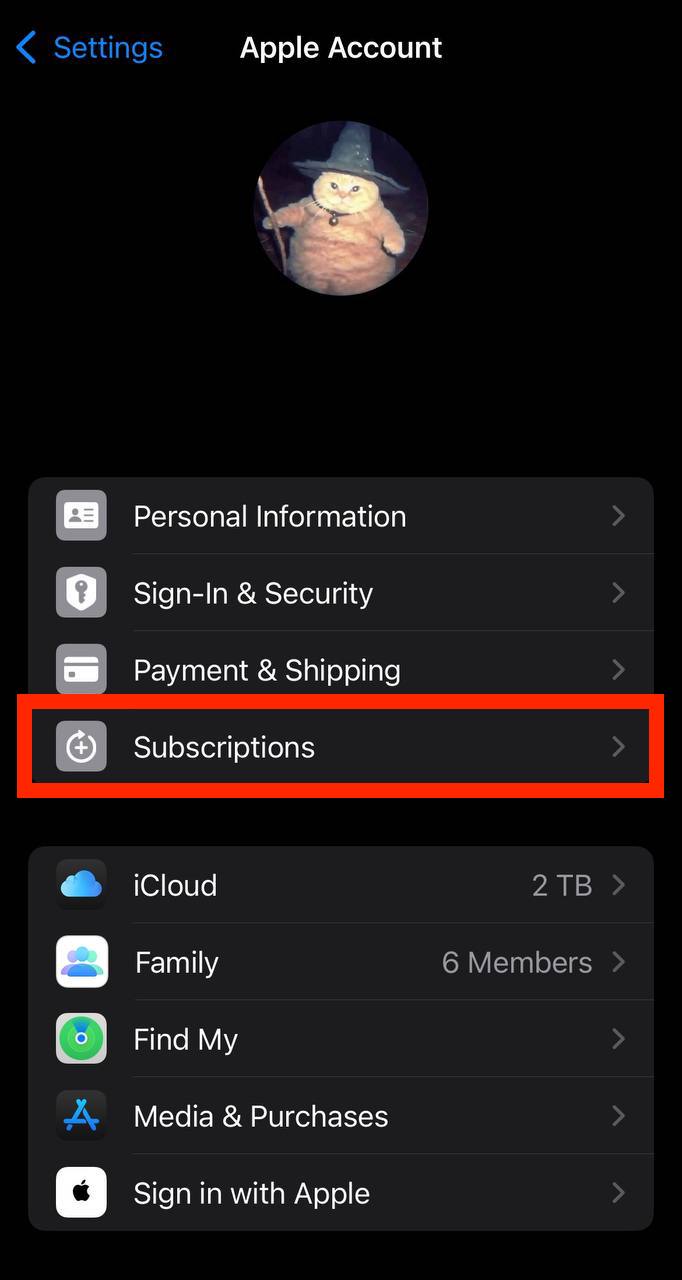
In the first section, tap Subscriptions.
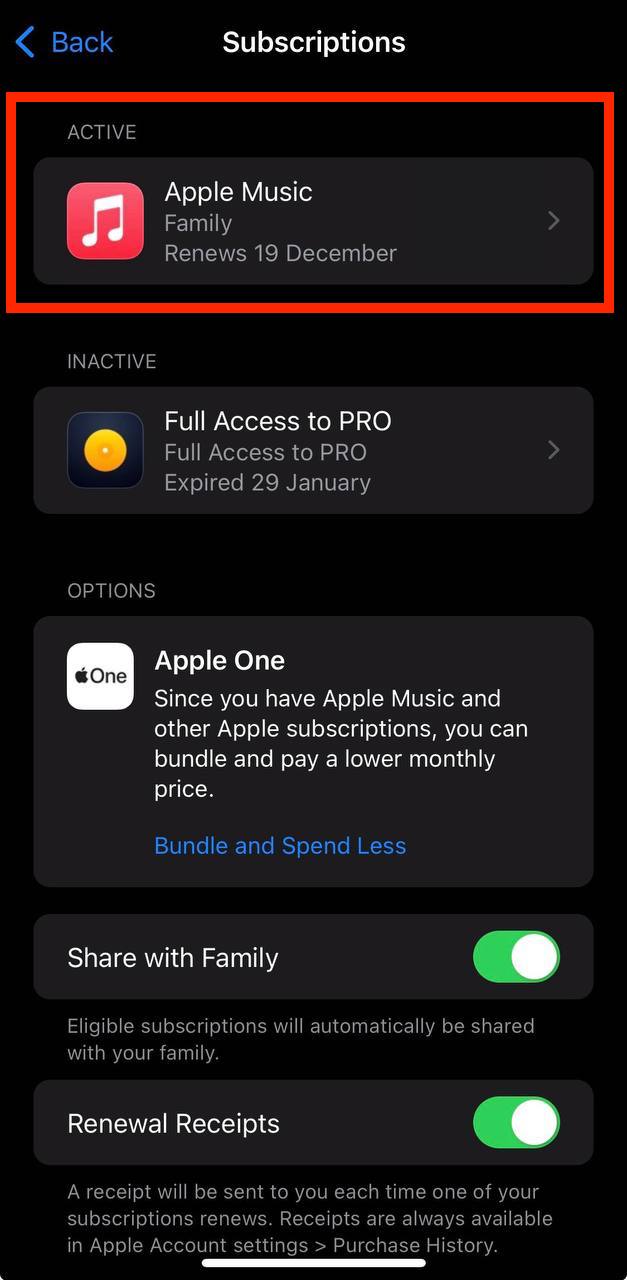
Show screenshot.Select the Vocabbie subscription you want to cancel.
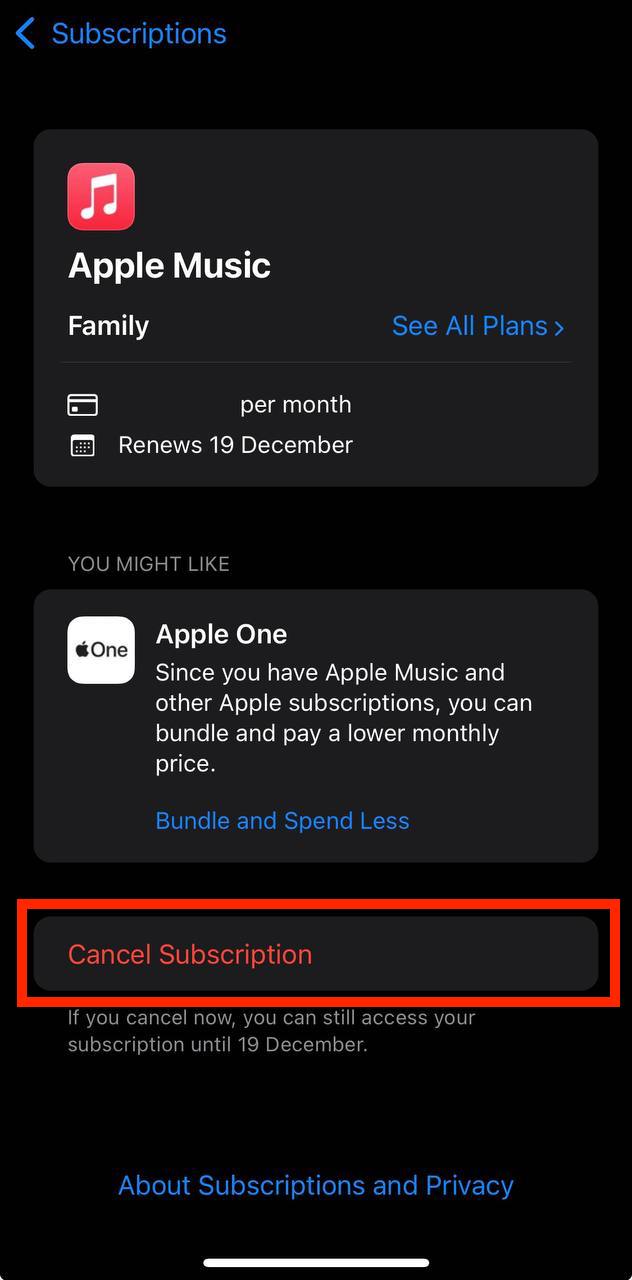
Show screenshot.Tap to Cancel Subscription. You may need to scroll down to locate the Cancel Subscription button. If the button is missing or a red expiration message appears, the subscription has already been canceled.
Show screenshot.
Cancel a subscription on your Mac
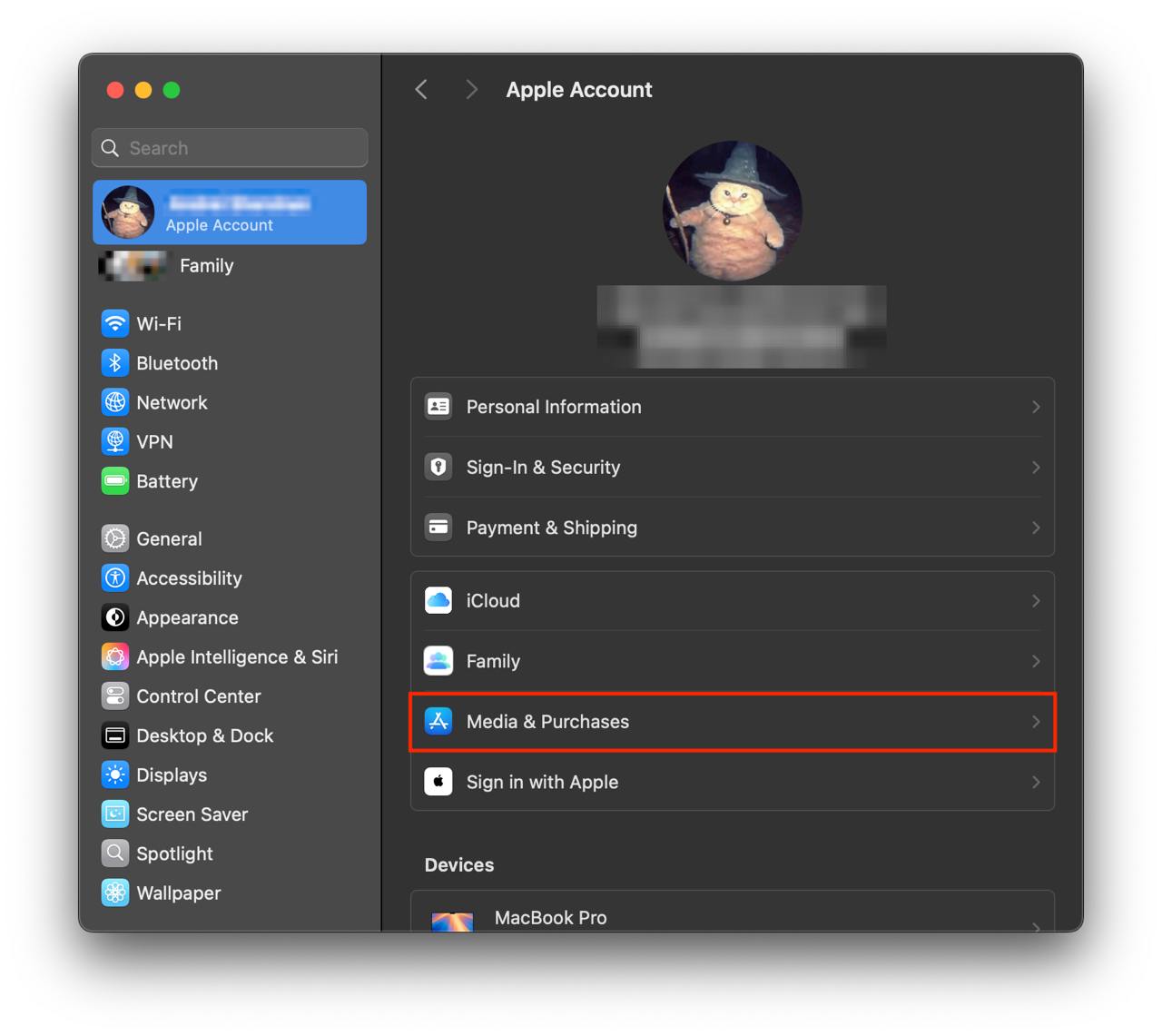
- Open the System Settings app.
- Click your name - "Apple Account" in the top-right corner.
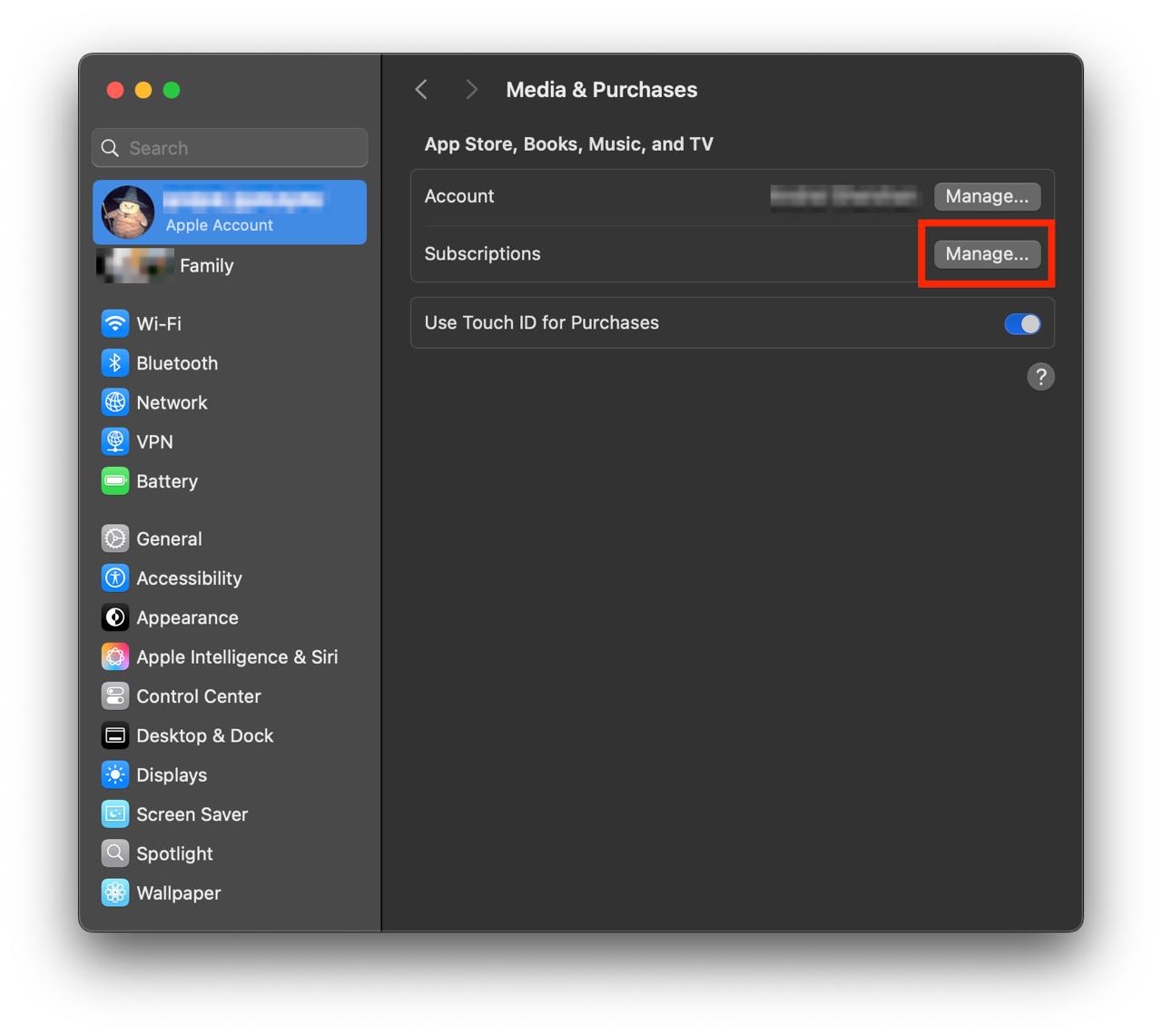
Click to "Media & Purchases" in the left-hand menu.
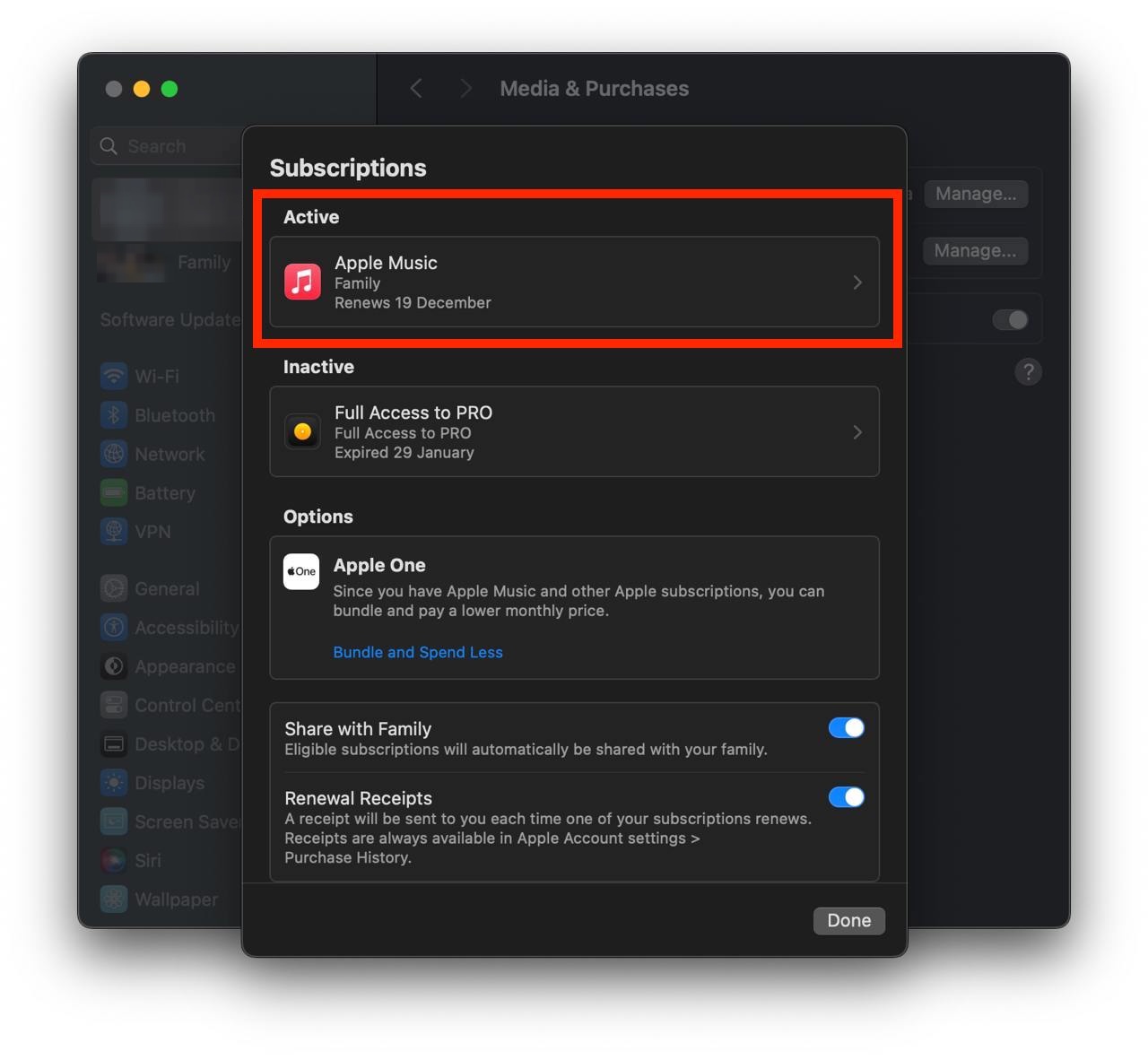
Show screenshot.Click to the "Manage..." button next to "Subscriptions" in the left-hand menu.
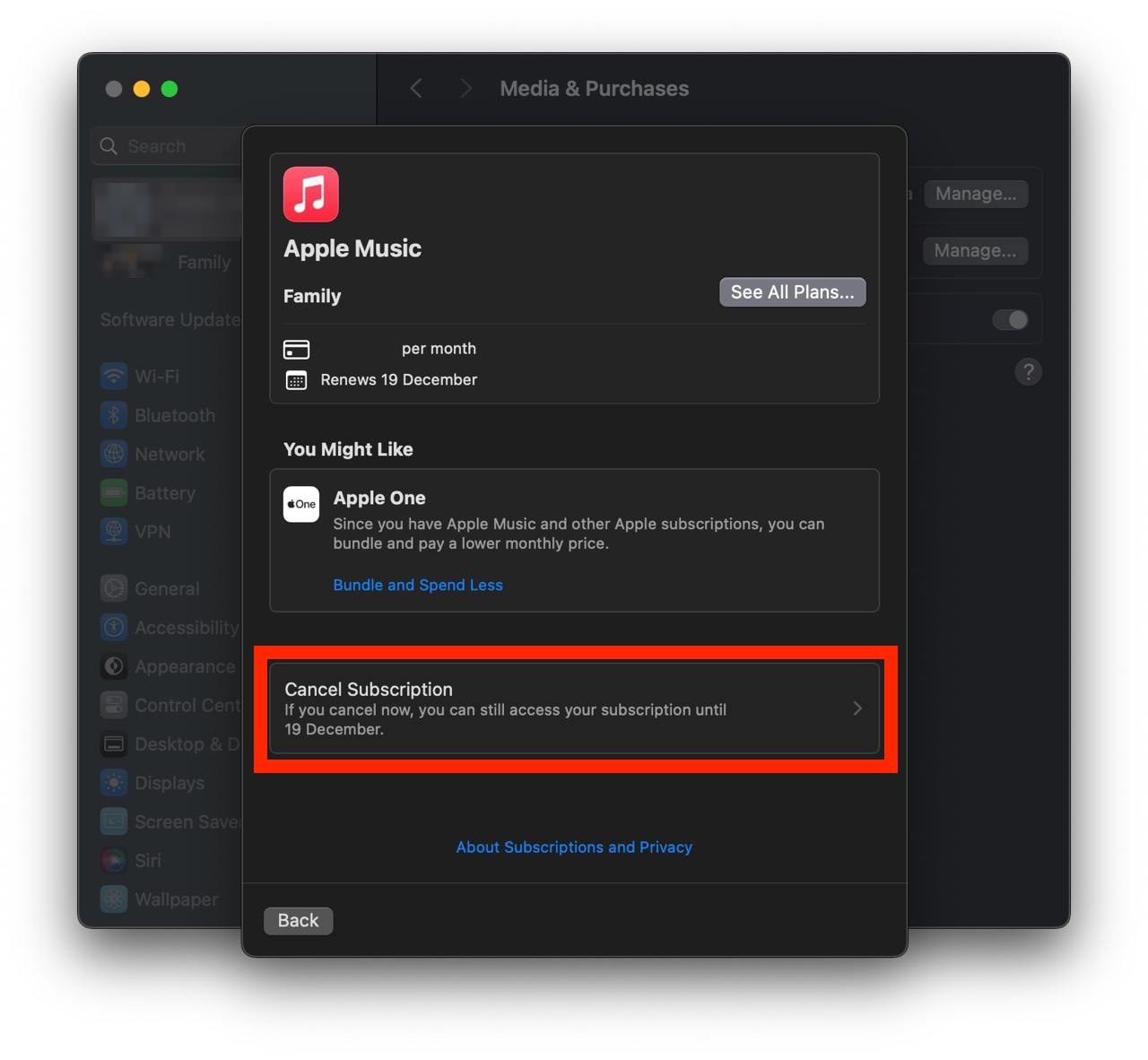
Show screenshot.Select the subscription you want to cancel. You may need to scroll down to locate the Cancel Subscription button. If the button is missing or a red expiration message appears, the subscription has already been canceled.
Show screenshot.Click the "Cancel Subscription" button.
Show screenshot.
Unable to find the subscription you want to cancel?
If you member of family account, you need to contact your Parent or family account owner to cancel the subscription by following the steps above.
If the receipt lists another Apple Account you use, sign in to that account and follow the steps in this guide to cancel the subscription.
Consider contacting app support or visiting the developer's website for assistance.
Follow by this link to discover the Vocabbie in the App Store.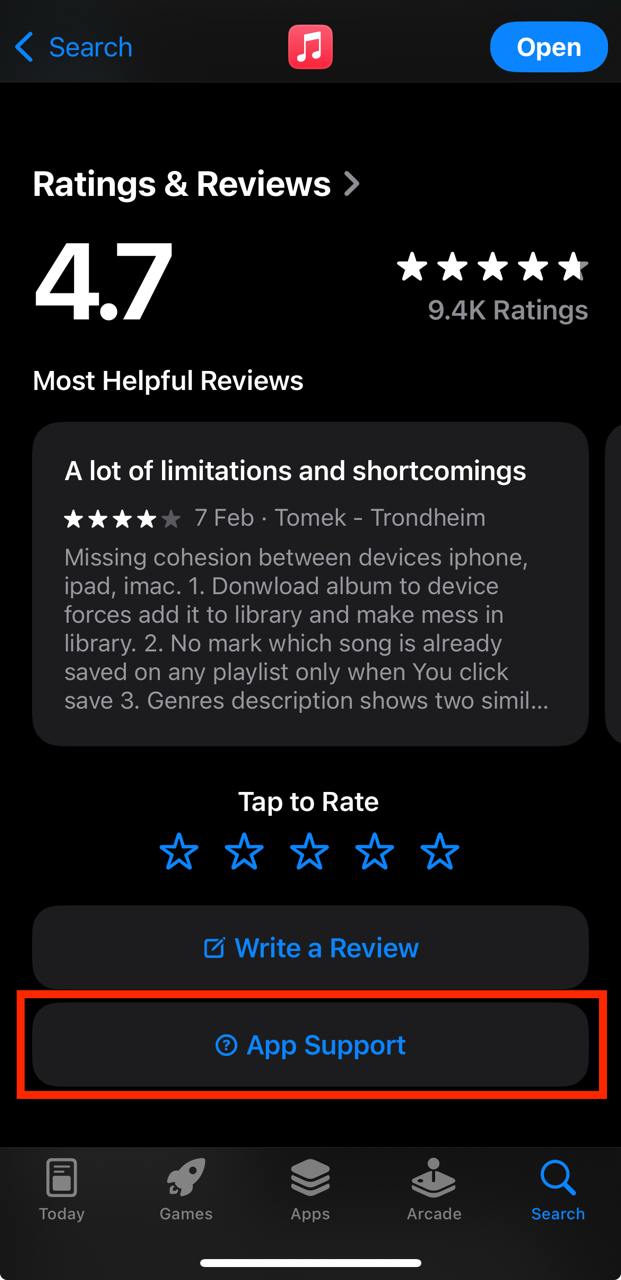
Vocabbie subscriptions
Vocabbie Lite Monthly
8 decks
Vocabbie Starter Monthly
25 decks
Vocabbie Pro Monthly
75 decks
Lite Annual
8 flashcard decks and 3 practice days per week
Vocabbie Max Monthly
150 decks
Pro Annual
100 flashcard decks and unlimited practice